Learn how to calculate sprint capacity per person and convert story points to hours, so your sprint plans match what your team can deliver.
How engineering leaders align actual capacity with actual requirements of planned projects in Jira

Key Takeaways
Capacity covers both roadmap delivery and the operational load every engineering team carries at the same time
Account for available hours after leave, meetings, and support, not a default 40-hour week. Book below full capacity
Compare the hours you planned against the hours your team logs. It makes the next plan more accurate and the current quarter easier to explain
To calculate capacity, you have to multiply the number of engineers by the sprint weeks available, then subtract holidays. That gives you a simple planning number, but it treats the working week as if every hour can go to planned sprint work.
Engineering teams don’t work that cleanly. Just one product incident or a customer escalation can need your engineers’ attention, removing them from planned work.
And when you consider that unexpected life events can also compete with roadmap work, you’d realize that a capacity plan should also protect engineers from commitments they wouldn’t realistically be able to meet.
This is why a capacity plan only holds if you measure it against an engineer’s real working week, beyond an idealized 40-hour schedule. This is what this guide is all about.
Correct capacity management is critical for engineering teams because roadmap work is only one part of the work week. Engineers also handle bugs and code reviews, and attend to support requests and other operational work that can pull hours away from planned delivery.
Engineering capacity management aligns planned work with your team’s available hours and skills. It complements the roadmap by answering, “how many hours does this team have for committed work once everything else is accounted for?”
To calculate real capacity, start from the hours on your engineering team’s calendar and subtract recurring time that’s not on the roadmap. Here are the most common real-world occurrences on an engineer's calendar, not accounted for on a roadmap:
Start from standard working days. Subtract leave and holidays, then the recurring load: Sprint ceremonies, 1:1s, architecture reviews, hiring panels, and other typical tasks/ceremonies that routinely reduce engineering time.
For many engineers, that overhead runs to several hours a week, which puts productive time well below the nominal figure. Book a team to 100%, and there will be no room for “emergency tasks”, so they’ll miss deadlines. To avoid that, plan below full capacity instead.
Engineers who own production systems carry operational duty alongside their typical project work. This means their workload swings from week to week; from a few hours during a quiet week to more hours than usual during a busy one.
Because engineers can be called to work on operational tasks, reserve time for them before you plan the roadmap. Study each engineer’s logged time over the past few quarters, take the average operational hours per week, and remove from the roadmap.
This helps you plan better and avoid surprises.
Shared specialists can make a plan look more available than it really is. A platform lead or senior architect may appear in your team’s headcount, but part of their week may already be committed to another team.
Before you plan work around their hours, check those commitments and subtract the hours they’ve already committed elsewhere. The hours left are the only hours you can safely use for your roadmap.
If those hours aren’t enough, the trade-off becomes clear: Reassign the work to someone else or adjust your deadlines.
Roadmap capacity is the time your team can safely commit after you remove hours spent on holidays, meetings, and non-roadmap work.
To calculate this, use the following formula:
Roadmap capacity = standard working time - unavailable time - operational allocation - shared-team commitments
Specifically:
Standard working time is the total number of working hours available before anything is removed
Unavailable time covers hours lost to PTO, holidays, and recurring meetings
Operational allocation covers time reserved for incidents, support, and other non-roadmap tasks
Shared-team commitments cover hours already promised to other teams or initiatives
The table below shows how this works across three teams.
Team | Standard hours | Unavailable time | Operational allocation | Shared-team allocation | Roadmap capacity |
Backend | 500 | 60 | 90 | 50 | 300 |
QA | 220 | 24 | 30 | 70 | 96 |
Platform | 300 | 36 | 100 | 40 | 124 |
For context, let’s say the Backend team has 500 standard hours. After 60 hours of unavailable time, 90 hours of operational work, and 50 hours of shared-team commitments are removed, 300 hours remain for roadmap delivery.
That 300 is the number you should use to plan capacity. If the Product team, for example, asks for more than 300 backend hours, you can show which work needs to move before the team commits.
Engineering teams overcommit when their plan shows assigned work but not the real hours available to complete it. Jira can show tickets and even delivery status, but still miss the capacity constraints behind the work. That is why a sprint can look organized and still be overloaded.
A Jira board shows every ticket assigned and on track. What it doesn’t show is how those tickets compare to the assignee's available hours. For context, ten tickets can look manageable when viewed separately, but together they may require more time than the engineer has in that sprint.
The board is organized ticket by ticket, but overcommitment is not visible in Jira. Tempo Capacity Planner keeps it: It converts the same Jira work into time-based capacity, so you see each person's committed hours against their real hours and can rebalance before the sprint starts. More on this later.
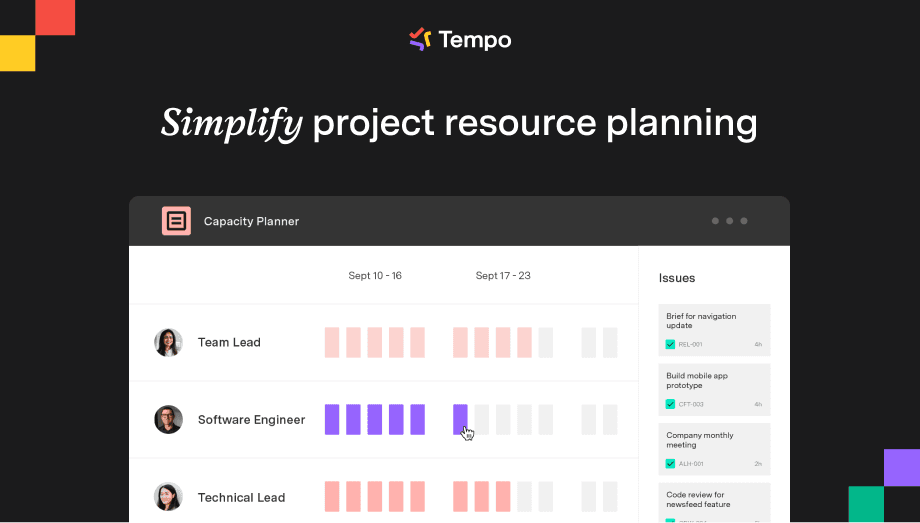
Take a systems architect on three initiatives, for example. Every team they belong to has a plan showing that the architect is fully available, but their real hours are split three ways.
When no single plan shows how this architect is spread across three teams at once, they have to sort it out alone and say No to “lower priority” tasks.
This is why engineering teams need to see one specialist's commitments across every team at once. When you can filter capacity by role and see which initiatives are already using that specialist, you can plan around the hours they have left.
Headcount tells you how many engineers you have. Skills tell you whether the right people are available for the work being planned.
Some teams plan capacity by headcount alone, so the plan shows enough total hours without showing whether those hours match the skills the work needs. Teams that do this fall short on that work, even when the headcount total still looks fine.
Skill-based capacity makes that constraint visible before the team commits to the work.
The last section covered what to measure. These nine practices turn that measurement into decisions to produce a much better quarter for you and your team.
Before you assign any work, calculate the real available hours per person for the period. Start from working days, subtract confirmed PTO and holidays, then subtract average recurring ceremony time. You should also add a buffer for typical operational demand from recent incident history.
Not all your team’s hours go into the roadmap. A good chunk of it goes into activities like
Operational and support load, like incidents and on-call
Internal engineering work, like tech debt and platform maintenance
Cross-team collaboration, like reviews and escalations for other teams
Your capacity plan needs to factor in recent quarters so you can accurately estimate time dedicated to non-roadmap work. That could look like these decision-led versions:
Broad statement | Decision-ready version |
"The backend team is full." | "The backend team has 500 standard hours this month. After leave, support, and shared architecture work, 300 hours remain for roadmap delivery." |
"QA is overloaded." | "The QA team has 96 hours left for roadmap testing after support and cross-team automation commitments." |
The column on the right shows the trade-off. You can move roadmap work and trim the operational reserve before you lock in the hours committed to the roadmap.
Give every shared specialist one view that shows their commitments across teams, and build it before any team locks scope that depends on them. You can do this with Tempo Capacity Planner's team planning view, which helps you identify shared team members and the teams each one belongs to, so you can sequence the work during planning instead of finding the clash mid-sprint.
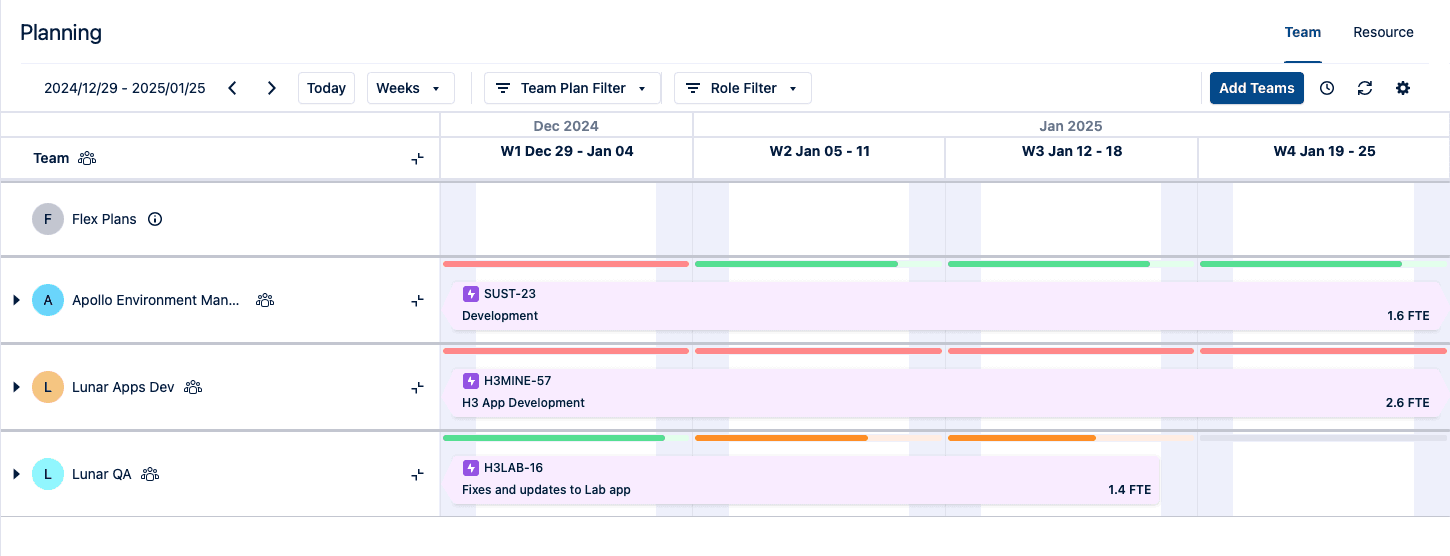
An engineer split across five initiatives at 20% each leads to context switching, which costs time.
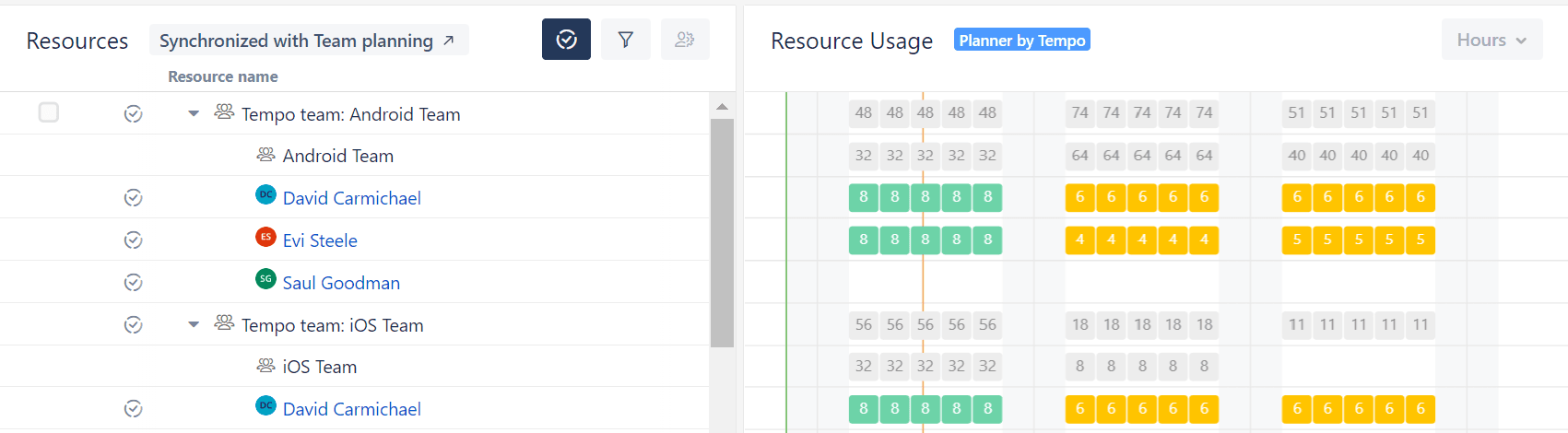
To avoid that, cap the concurrent workstreams per engineer. The cap puts over-allocation in the plan instead of the retrospective, and forces the question that matters: What does this engineer finish this sprint?
This is what that looks like in Tempo Capacity Planner: Each engineer's planned hours show up week by week, color-coded so anyone over their limit stands out before the sprint closes, while you still have room to move work.
In every capacity plan, separate available headcount from available skills. When work needs specific expertise, check if the right people have the necessary time. This way, you can book specific expertise when they have a lighter operational workload.
You can also use Tempo Capacity Planner for this. Once you tag each team member with their skills, you can track each person's skills and filter by role, so you can tell whether the one person who can do something is already booked elsewhere. And if they’re not, you can add them to your roadmap without any conflicts arising.
Many engineering teams estimate work in story points, a rough measure of how much effort a task takes compared with other tasks. In a single-team org, they work fine because the team knows what its five-point task feels like.
They stop being useful across multiple teams because each team has its own structure. One team's five points are not another team's five points, so you cannot add them up to see the load across teams. This means a director comparing two teams sees 40 points on one and 55 on the other, and still cannot tell which has room or what either number costs.
Points also don’t map to money, and finance or any leader signing off on scope needs the work in hours and budget. So when you need a capacity view across teams, or a number for a budget conversation, convert the points to hours.
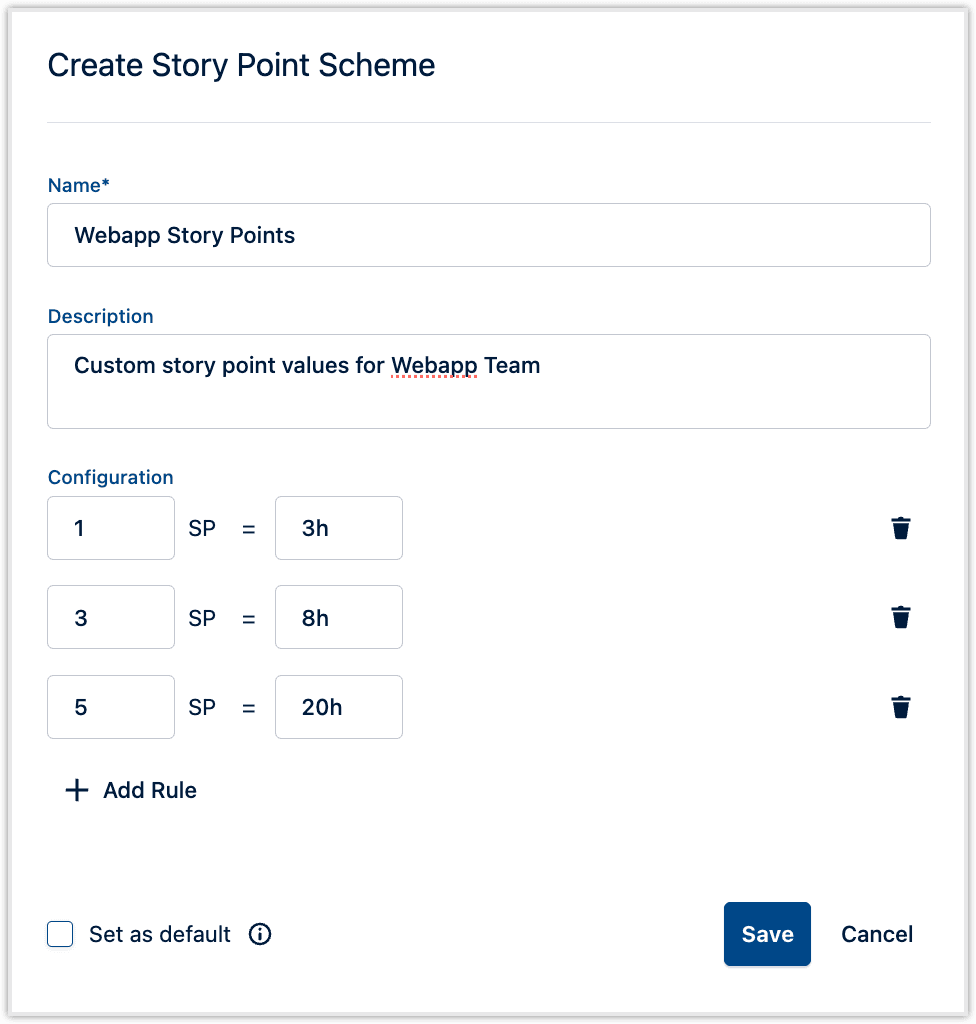
You can work this out manually from your history. Take a few recent sprints, divide the hours the team logged by the points it completed, and you get a rough "hours per point" rate for that team. Multiply each team's planned points by its own rate to get planned hours.
You can also automate this with story-point planning, a feature inside Capacity Planner. It maps each team's points to hours, so teams keep estimating the way they already do, while you plan and report in hours that everyone can compare.
A scenario is a what-if: You take the plan, change one thing, and see what happens to your commitments.
So before you lock roadmap dates, model at least two scenarios: A baseline at realistic capacity and a version with changed input (e.g., a key engineer on leave or a spike in incident load). Scenario modeling shows you the outcome before you commit, so if a change would strain the sprint, you rebalance now, moving work or adding capacity, instead of finding out mid-quarter.
The payoff is in the data: In Tempo's 2026 State of SPM report, 85% of teams that use scenario planning report confidence in adapting to change, against 46.3% of teams that do not.
With Tempo Capacity Planner, you can model an alternative plan as a non-synced plan so you can test the change safely. When you decide to keep the change, check the box labeled Sync plan with Jira work item, and the plan syncs to Jira without re-entering.
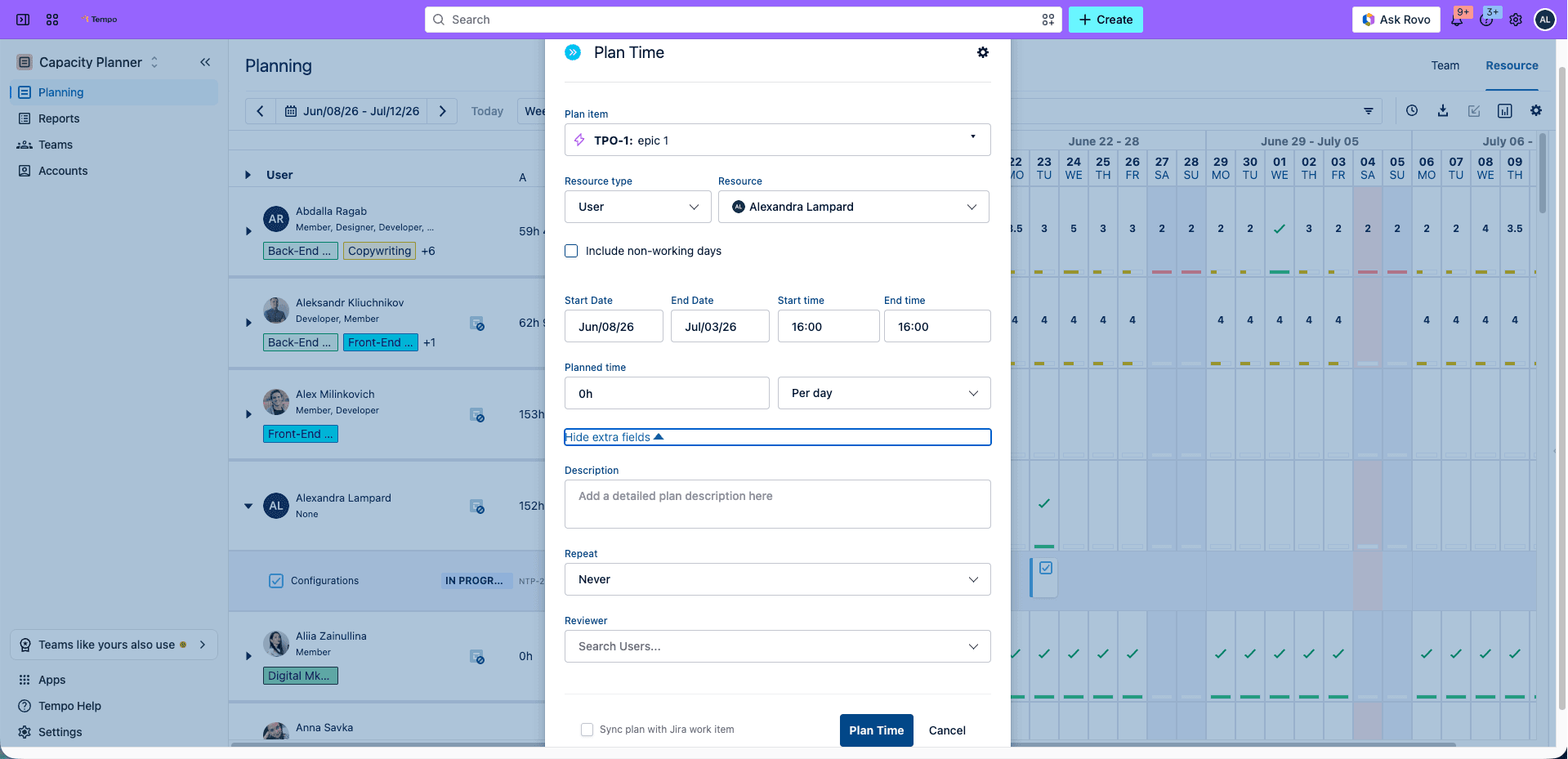
Plans inevitably change. A quarterly review will catch drift too late, but a weekly review, where you ask “What changed since last week, and what has to change because of it?” helps you spot challenges. This could be anything from who is out of office to which type of support ticket increased. You can then rebalance your capacity while you still have options.
If you do this manually, you’ll need to reopen your spreadsheet every week and reenter the changes. But with Tempo Capacity Planner, which already reads live Jira data, you’ll get updates in real time, so the assessment is easier and faster.
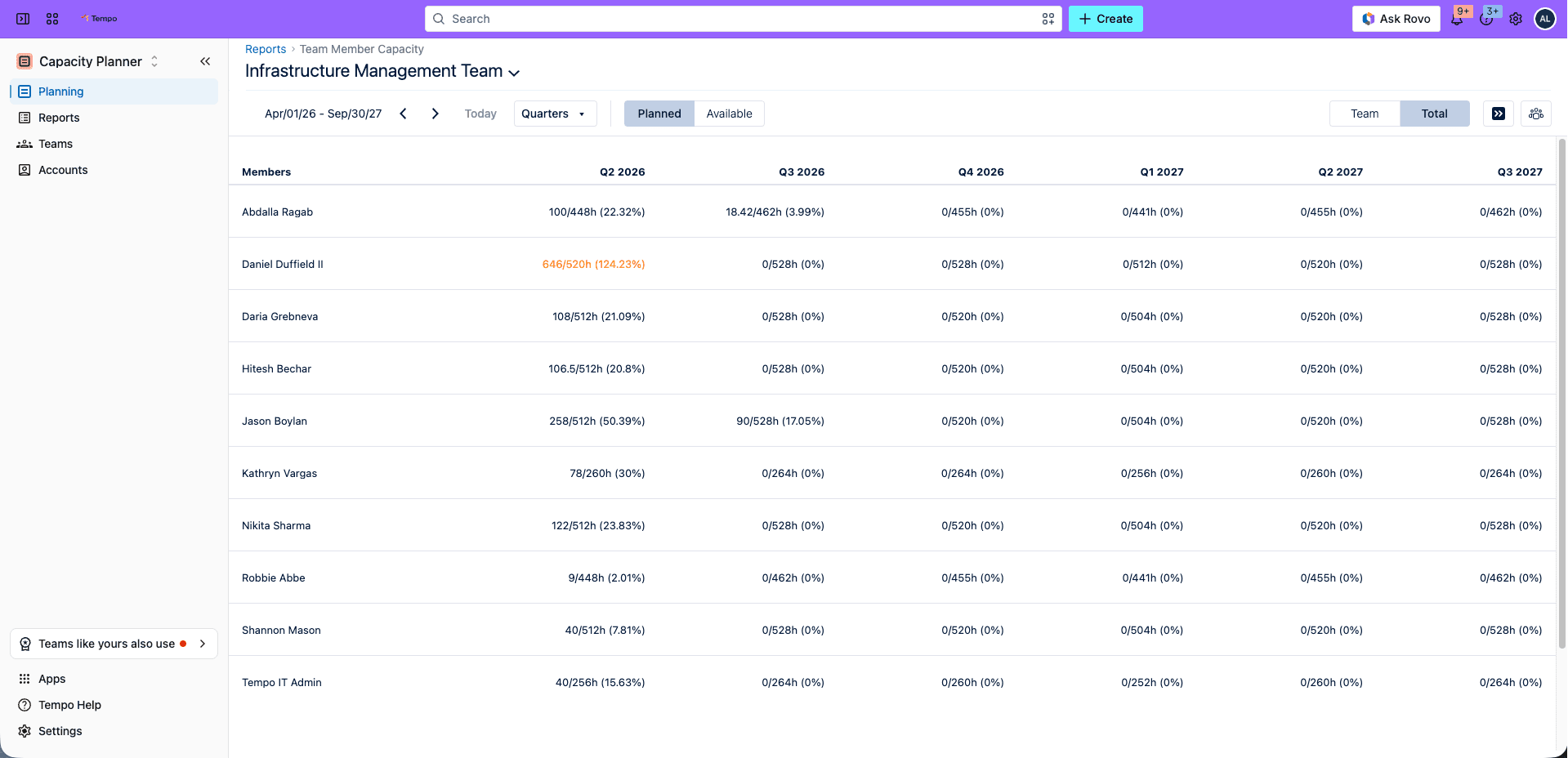
A plan is a hypothesis; logged time is the evidence. At the end of the sprint or month, put the hours you planned next to the hours the team logged, initiative by initiative, and look at the variance.
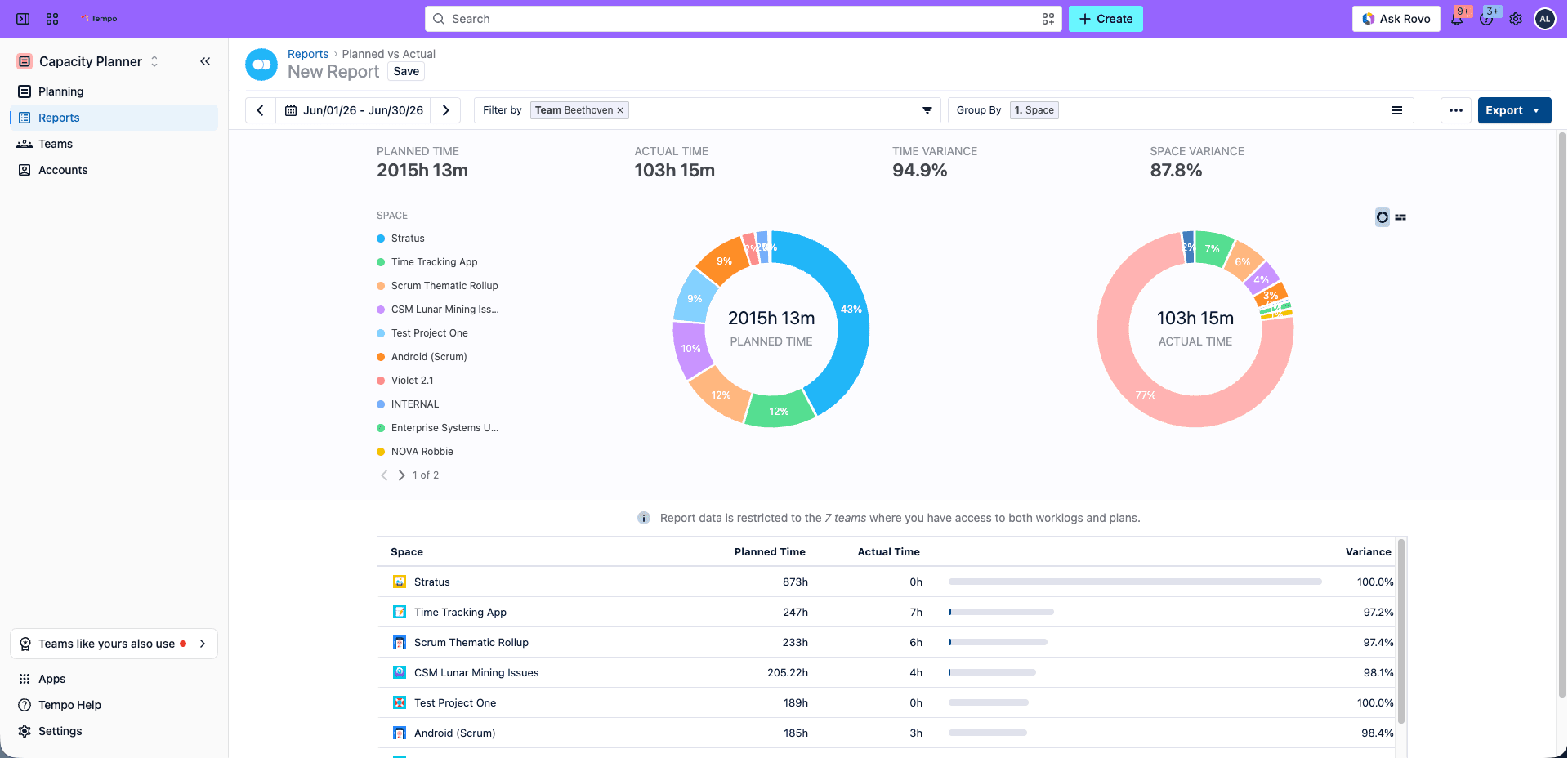
To calculate planned vs actuals, you’d have to manually export the worklogs and line them up against the plan in a spreadsheet.
You can also pair Capacity Planner with Tempo Timesheets (which also needs to be installed in Jira). With both installed, when a project runs longer than expected, you can show leadership what’s taking more time instead of guessing. The Planned vs Actual report also helps sharpen your next estimate.
Youwe, an internet agency with 110+ employees across 12 teams and 600+ active projects, runs its whole operation on this loop. Jira alone couldn’t solve the problem of tracking worklogs and hours at that scale; pairing Capacity Planner with Tempo Timesheets gave them the plan-versus-actual reporting they now run the business on.
As CTO Rob Wiek put it: "We have built our entire business around Tempo Planner and Tempo Timesheets."
Good capacity planning comes down to one honest number: The hours your team has for planned work once everything else on their plate is accounted for.
Plan against that number, then compare it with the hours your engineers log at the end of the sprint, and every plan will be more accurate than the last.
You can start with a spreadsheet, but switch to a capacity planning tool once your team grows and plans change more frequently, otherwise , you’ll spend more time updating the spreadsheet than using it to plan capacity.
If you’re already at that stage, sign up for a free trial of Tempo Capacity Planner.
Capacity Planner
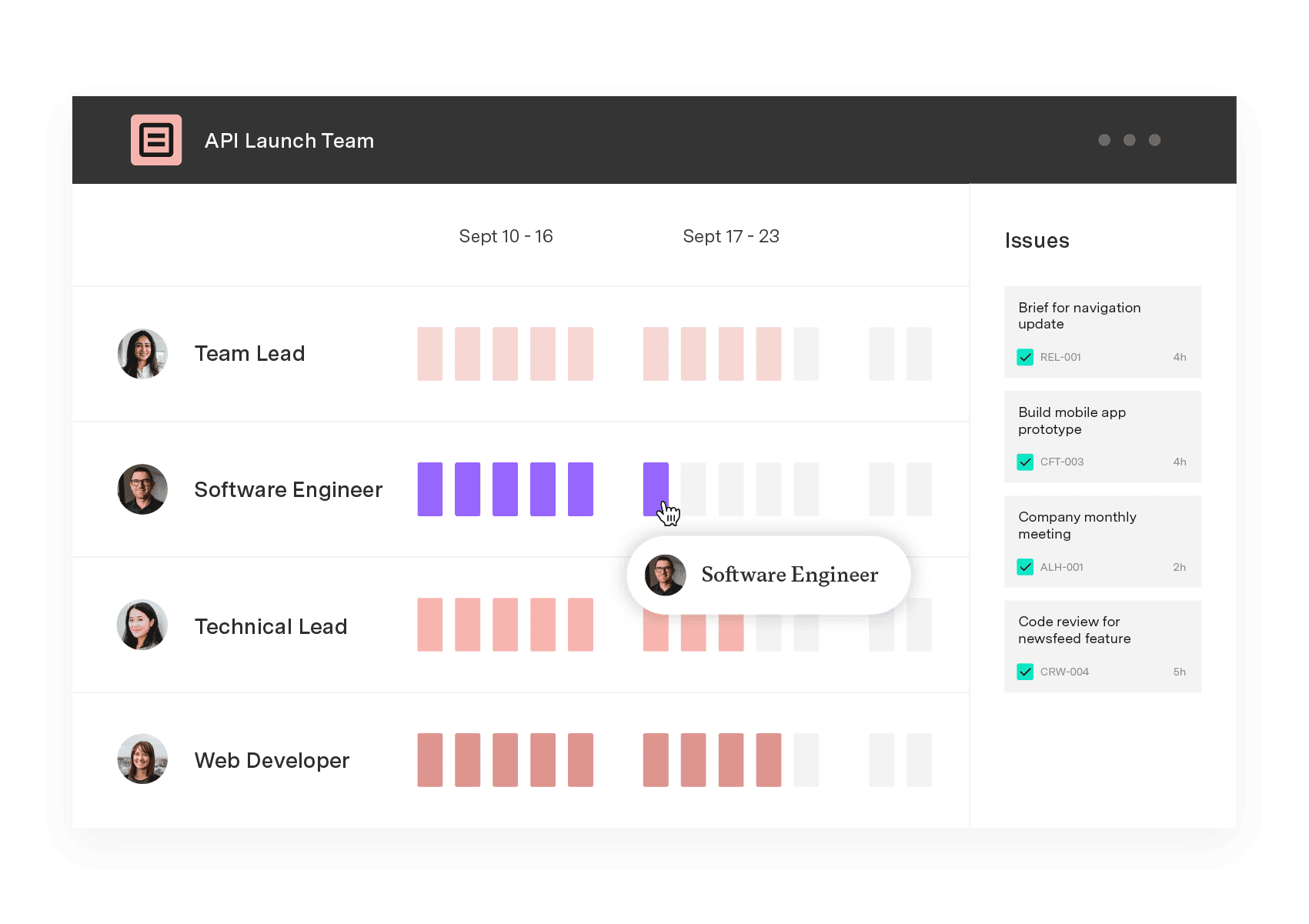
Capacity Planner is the only tool in the Atlassian Marketplace that allows planning for multiple resources on one issue. Users can customize the UI to include their existing Jira issues and projects.
Start a Free TrialCouldn't find what you need?Go to our documentation
Capacity management is about time; resource management is broader. Capacity management answers how many hours each engineer has for planned work after operational load and leave. Resource management covers that too, plus matching skills to work and shaping the team.
Reserve a buffer from recent history. Calculate the average operational and incident hours per engineer per week over the past two or three quarters, and subtract that buffer before you assign any sprint scope. The buffer may not be consistent every single week, but it keeps you clear of the structural overshoot that comes from treating incident load as exceptional.
An engineer's total hours across all teams cannot exceed their real available hours in any period. That takes one view of every team's claim on their time at once. Before any team commits a shared engineer, check their full allocation, not just the slice on your team. The demand that makes them miss deadlines usually comes from the other teams they support, not the one they belong to.
Velocity looks backward, capacity looks forward, and they are not interchangeable. Velocity measures how much a team shipped in past sprints, usually in story points. Capacity measures how many hours are available for the next sprint after leave and operational load. When conditions are stable, velocity is a fair proxy. When they shift, say, a key engineer is out of office, velocity alone overstates what the team can deliver. Use velocity to read the team's pace and capacity to set what you commit to.
Learn how to calculate sprint capacity per person and convert story points to hours, so your sprint plans match what your team can deliver.

Compare the best capacity planning software for engineering teams on Jira. See how six tools handle two-way sync, utilization, and plan vs. actual.

Headcount on paper rarely matches who's free for your roadmap. Build capacity plans from real hours and catch overbooking before it affects a sprint.

Software engineering intelligence platforms read time logs, Jira, and Git as one dataset. See what they measure and where AI spend fits in.

Jira assigns work but doesn't show team capacity. We compare six resource management tools for their integration with Jira and project visibility.

Compare the 6 best resource scheduling tools for engineering teams, ranked by Jira integration depth and cross-project visibility.

Plan, balance, and forecast portfolio capacity with Tempo's Capacity Planner and Structure PPM – built for enterprise PMOs.

Excel works for small projects. See where it falters, the costs you don't see, and when to move to a real project management tool.
Timesheets by Tempo's integration with Jira Align, product leaders can effortlessly assess development investments