Explore the best OKR software for goal alignment and progress tracking. Compare top tools and learn how Tempo enhances OKR visibility in Jira.

Managing and retrieving substantial volumes of Jira data can be time-consuming and costly without an efficient architecture. Using a data warehouse such as BigQuery becomes critical to addressing this challenge. Connecting Jira to BigQuery offers a powerful solution for organizations aiming to bolster collaboration and extract significance from a large, detailed dataset. Jira's project tracking capabilities and BigQuery's robust data analytics prowess create a powerful combination.
This post will explore a widely adopted approach for transferring data from Jira to BigQuery, enabling more in-depth analysis.
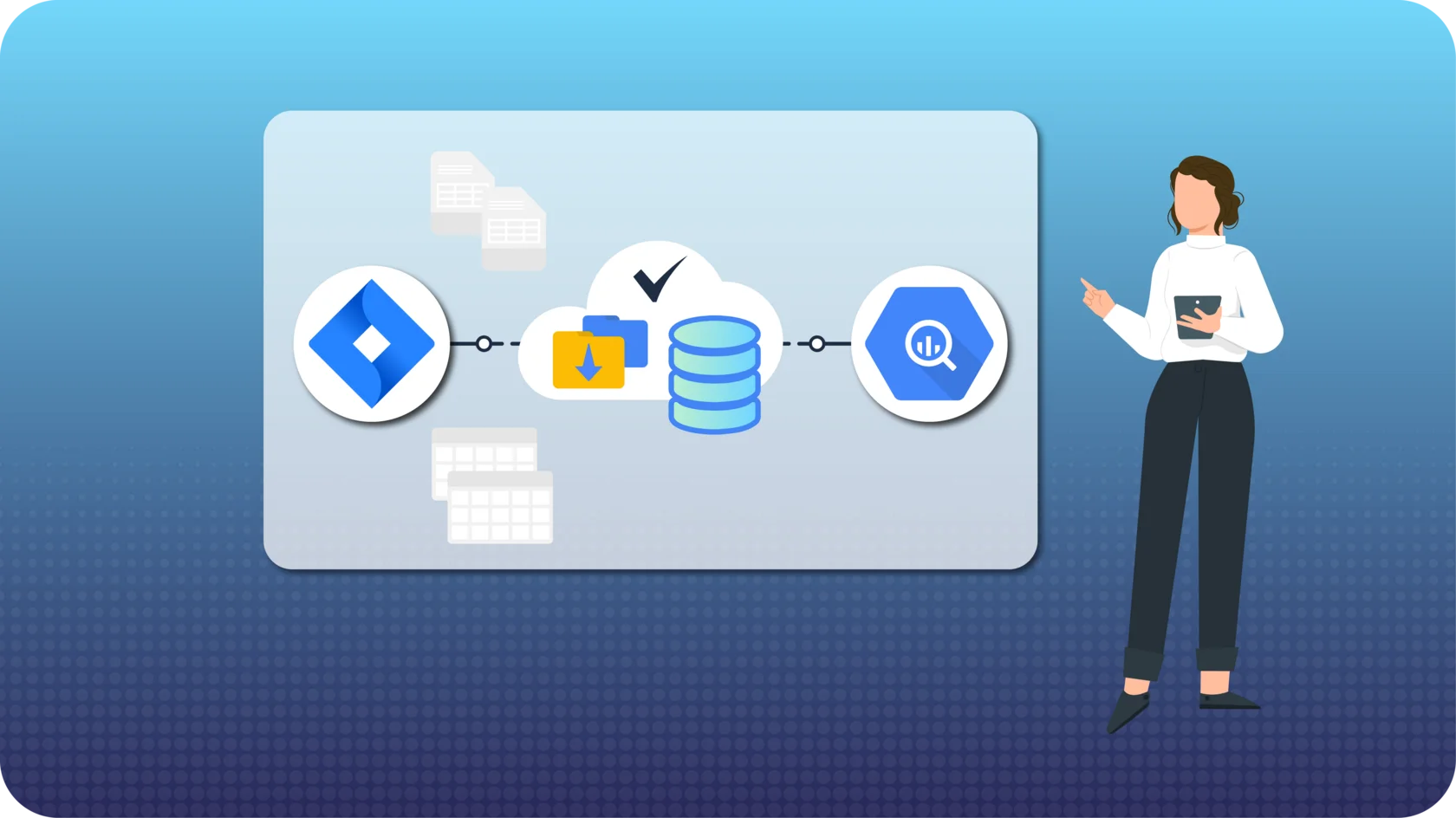

BigQuery is part of the Google Cloud environment, which contains many balancing tools that support creating a centralized warehouse from numerous data sources. It solves the issue of storing massive datasets by keeping superfast SQL queries. It is an adjustable and fully managed analytics solution that lets you investigate big data effectively and securely.
Jira is also a customizable project management system that allows teams to build a centralized database and create, assign, and track tasks. Jira has abilities that are ideal for organizing tasks and managing teams. It is highly configurable and flexible to use in various environments and procedures. Jira's amount of commercial data may be crucial to understanding and developing new strategic opportunities and improving company performance.
Now imagine connect Jira to BigQuery! At that point, Jira BigQuery integration allow you to add Jira to your main data sources in BigQuery and get the latest and fullest project data for consistent business decisions. Using Jira Cloud as an information source for BigQuery, team members can not only track their own project activity but also evaluate results to determine overall business outcomes.
The BigQuery Connector for Jira stands out as an enterprise-grade solution designed to empower non-technical users by facilitating the seamless transfer of Jira data to BigQuery, enhancing data management capabilities. Trusted by leading enterprises, government entities, and educational institutions, this connector allows for adapting critical data to custom business needs.
Integrating Jira with BigQuery becomes a seamless attempt with the introduction of the BigQuery Connector for Jira. This connector redefines the experience of loading data into BigQuery, eliminating the complexities associated with manual transfers. Users can effortlessly load Jira data to BigQuery, starting with the straightforward installation of the connector. Creating a service account key and a customized data source follows, where users can easily select specific fields using tailored filters. For a more detailed set-up process, follow the article.
The BigQuery Connector for Jira is a top-tier application designed for enterprises to facilitate the automated transfer of significant data from Jira to BigQuery. This integration streamlines data management, querying, integration, and access control without requiring coding skills or extensive manual efforts.
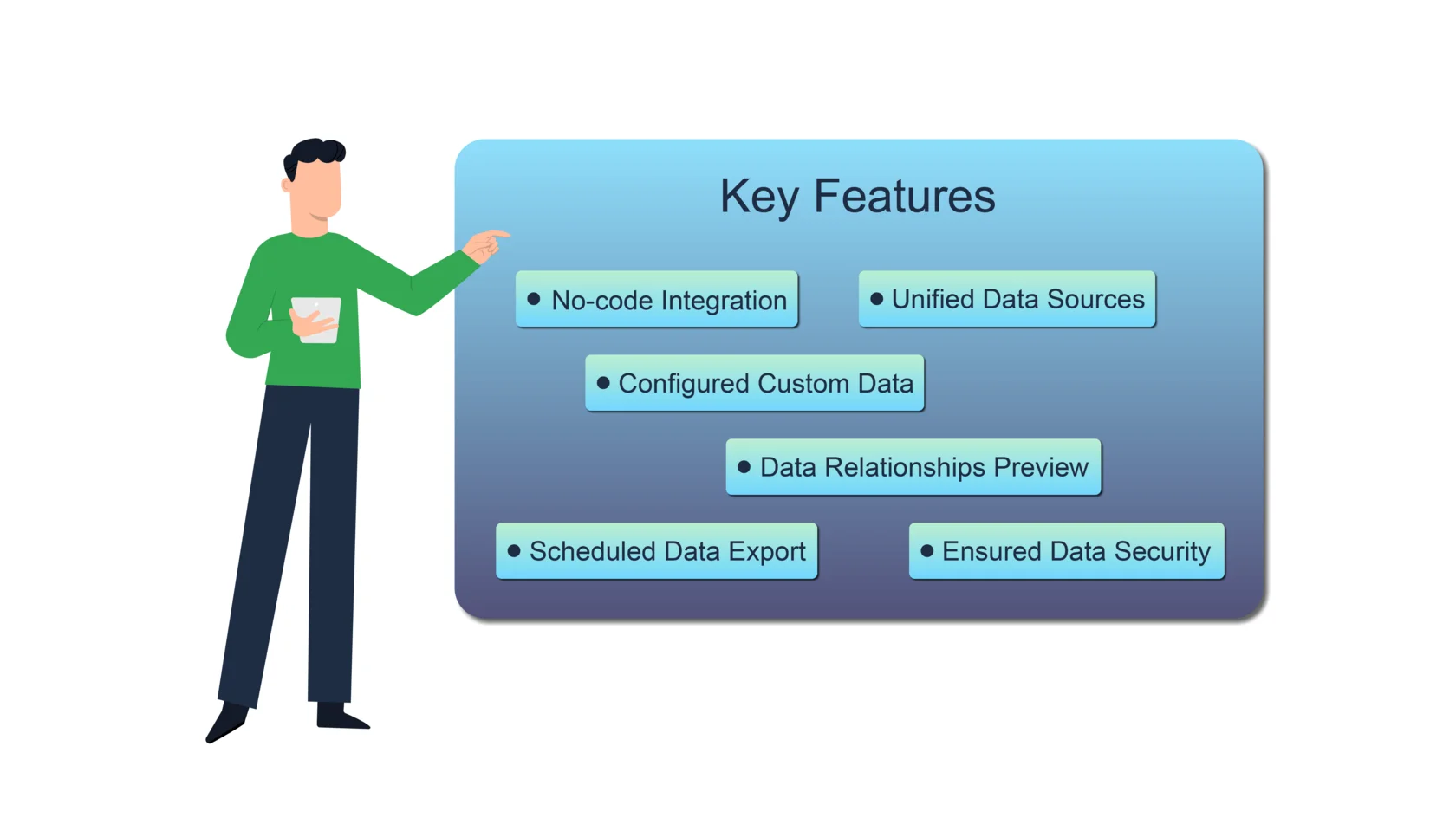
1. No-code Integration
Effortlessly set up the connection without the need for additional technical skills. Users without Jira admin expertise can set up the connection via the Google Cloud service account key and easily navigate the application.
2. Configured Custom Data
Add or remove tables within the dataset based on specific requirements. Apply advanced filters, including Basic, JQL, or advanced Jira Software filters, to narrow down data. Extract custom data from Jira to BigQuery for in-depth analysis.
3. Unified Data Sources
Create unlimited data sources across all Jira projects, third-party apps, and external data sources (e.g., CRM, SAP, ITSM). Retrieve unlimited issues from all accessible boards and projects within BigQuery, ensuring comprehensive data integration.
4. Data Relationships Preview
Enhance data relationships experience with an Entity Relationship Diagram (ERD) schema. Preview relationships between tables, including Jira custom fields and supported add-ons, before finalizing the data source and making additional customizations in BigQuery.
5. Scheduled Data Export
Schedule Jira data extraction to BigQuery using the Auto-Export functionality. Ensure faster decision-making with up-to-date data by automating regular data exports.
6. Ensured Data Security
Configure permissions to create, edit, monitor, and govern connectors to maintain consistent data security. Select specific users or groups to share permissions, providing control and security throughout the data integration.
Configuring BigQuery Connector for Jira integration is a straightforward process involving simple configuration steps to connect these powerful platforms seamlessly. Follow this instruction to ensure a smooth setup process.BigQuery Connector for JiraWatch a video to see how the app works
[VIDEO]
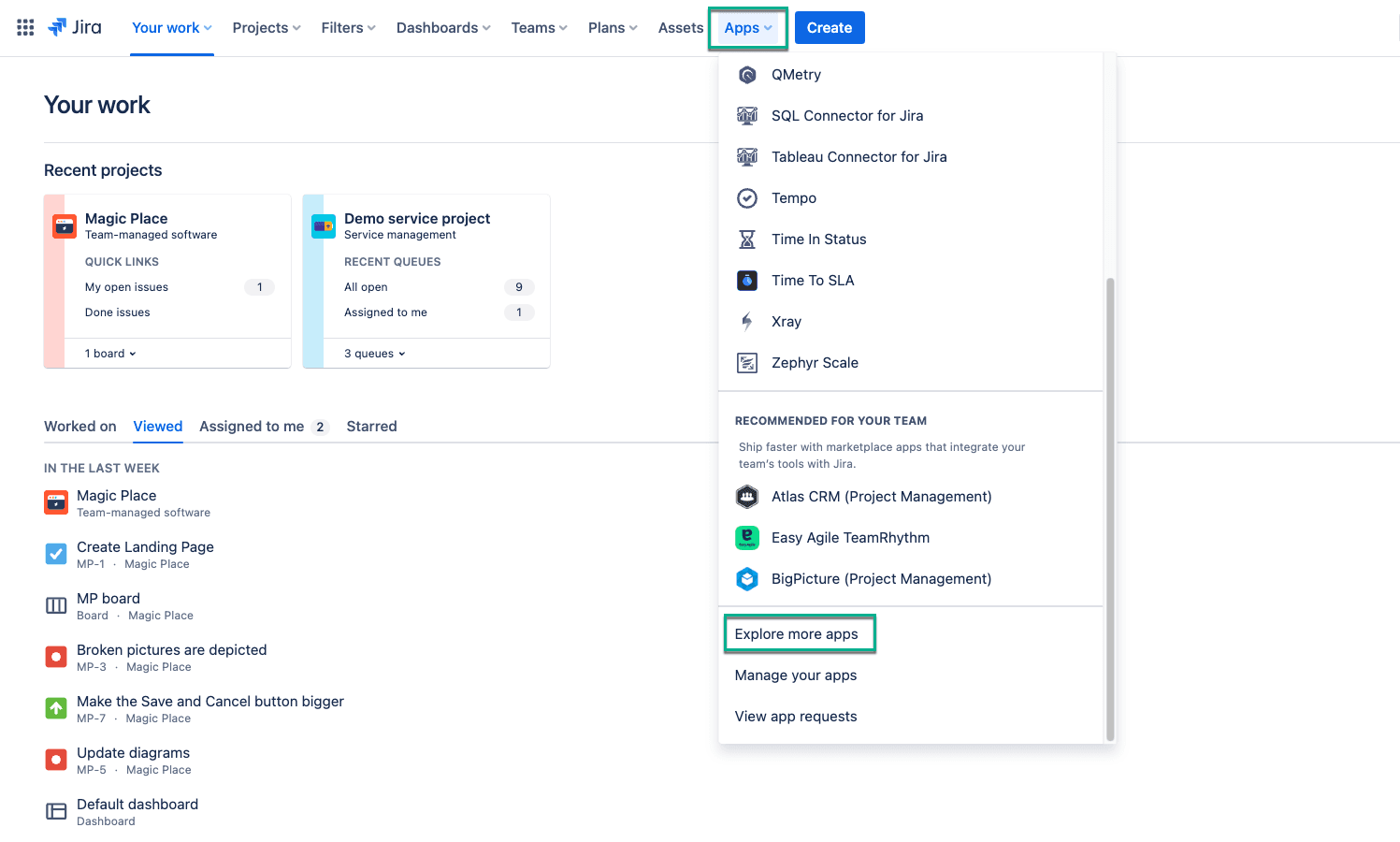
While logged into your Jira Cloud instance, navigate to Apps and then click on Explore more apps.
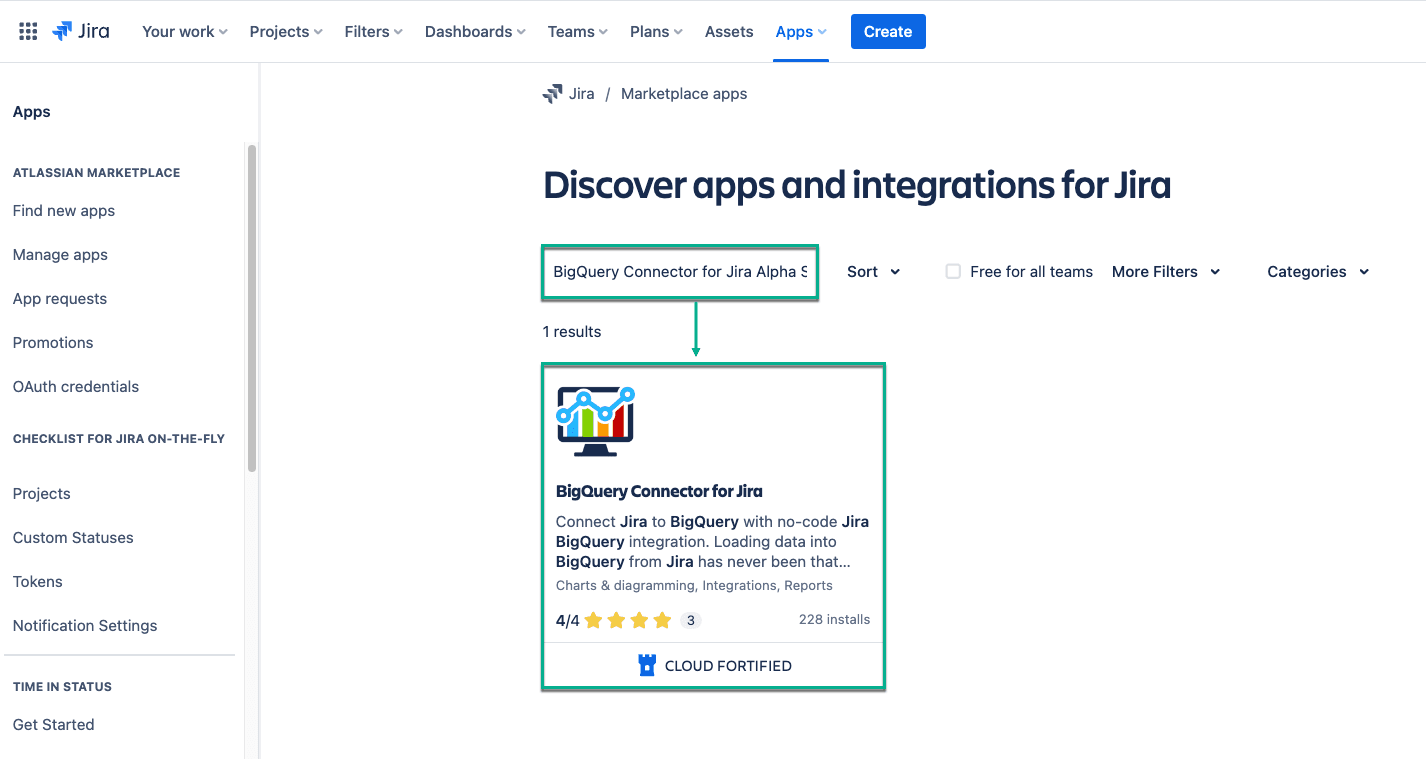
Type "BigQuery Connector for Jira Alpha Serve" in the search box and hit Enter. From the search results, choose BigQuery Connector for Jira by Alpha Serve.
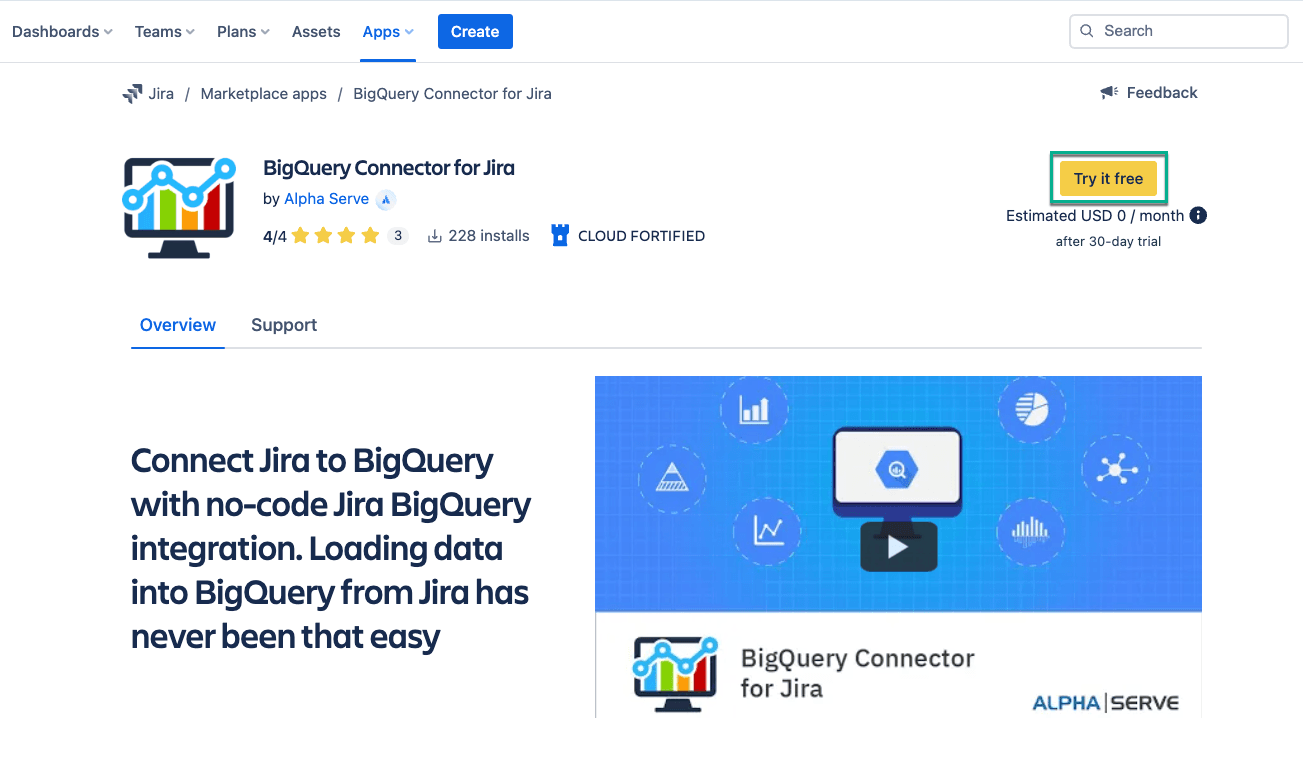
Click "Try it free" to initiate a 30-day free trial license.
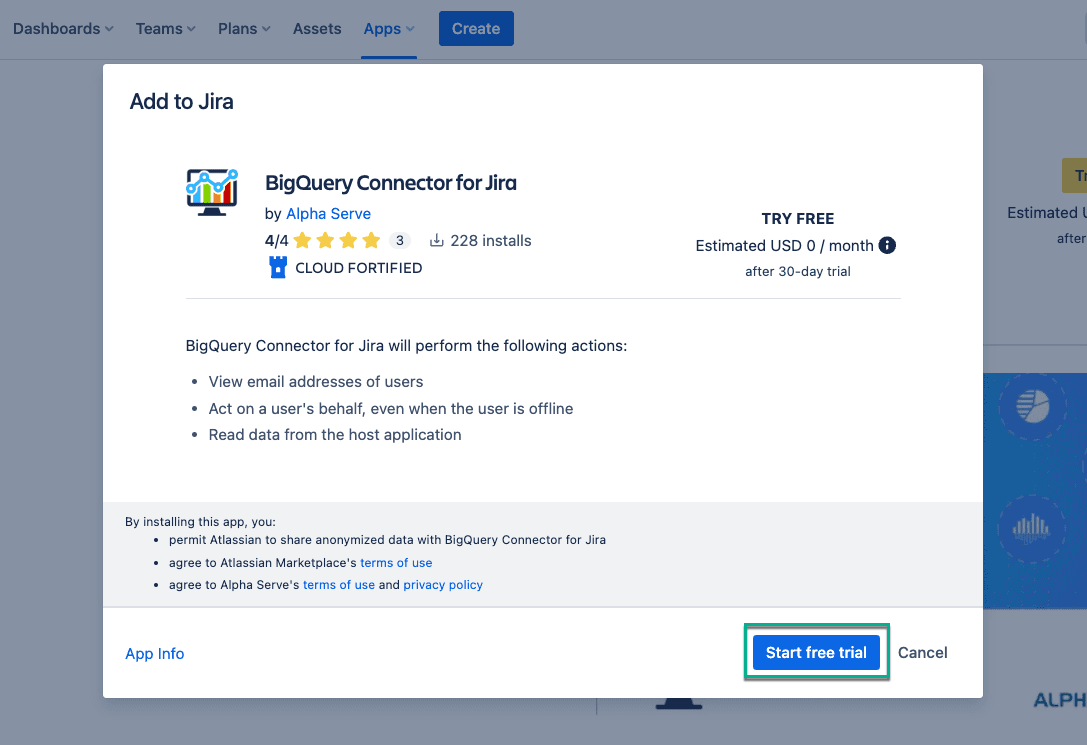
Select "Start free trial," and the app installation will begin automatically. Upon successful installation, a notification will confirm the completion of the process.
You're now ready to conveniently access BigQuery Connector for Jira from the Apps section in your Jira Cloud instance.
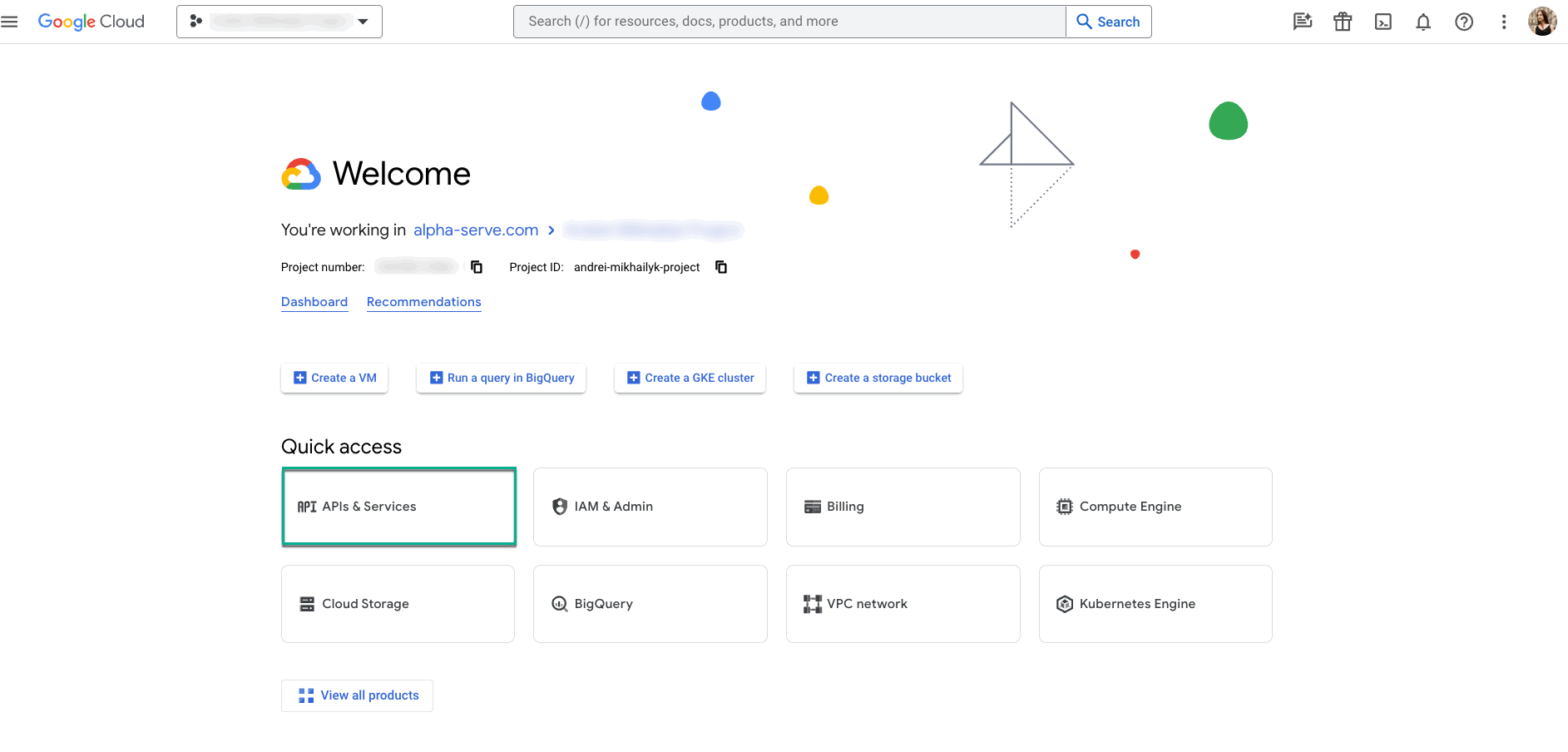
Access your project on the Google Cloud Platform, or if you don't have one, create a billing project for data export purposes. Navigate to "APIs & Services" and click "Credentials."
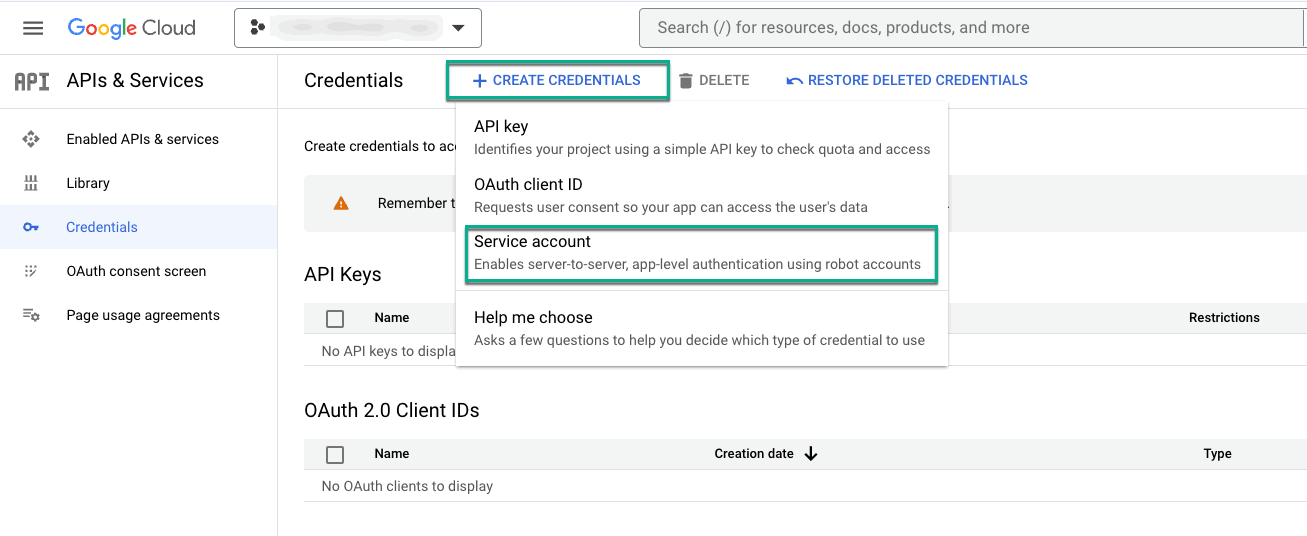
Create credentials by selecting "+CREATE CREDENTIALS" and "Service account."
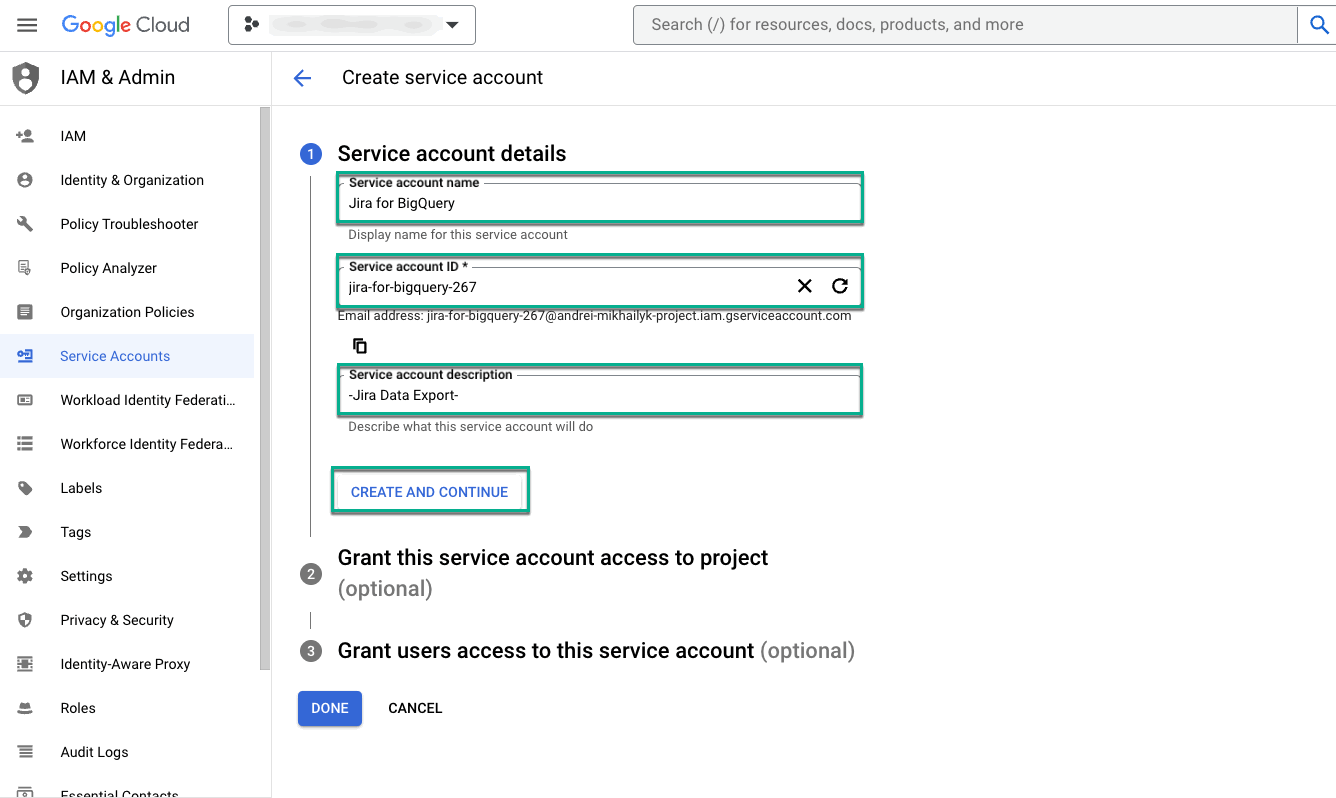
Enter the service account Service Account name, Service Account description, Service Account ID, then click "CREATE AND CONTINUE."
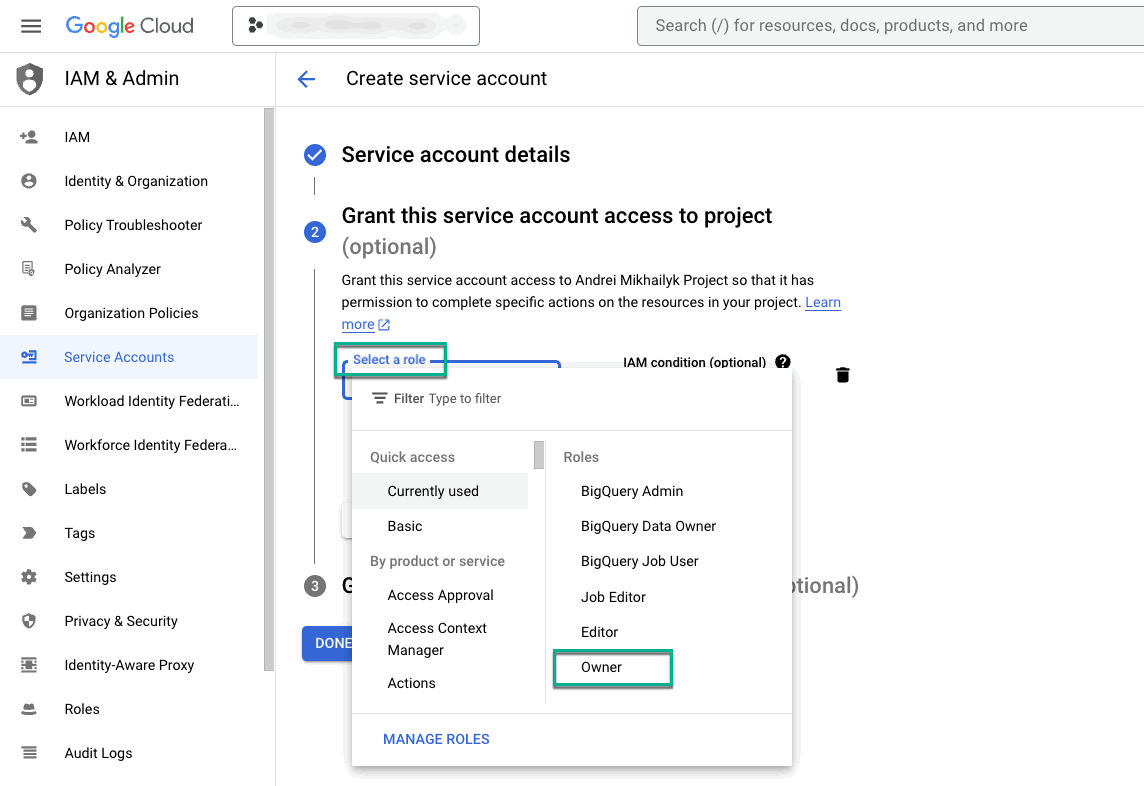
In the "Select a role" field, choose "Owner."
Depending on your needs, click on "CONTINUE" to share the service account and its key or "DONE" if not required.
Each user should create a service account and generate a service account key.
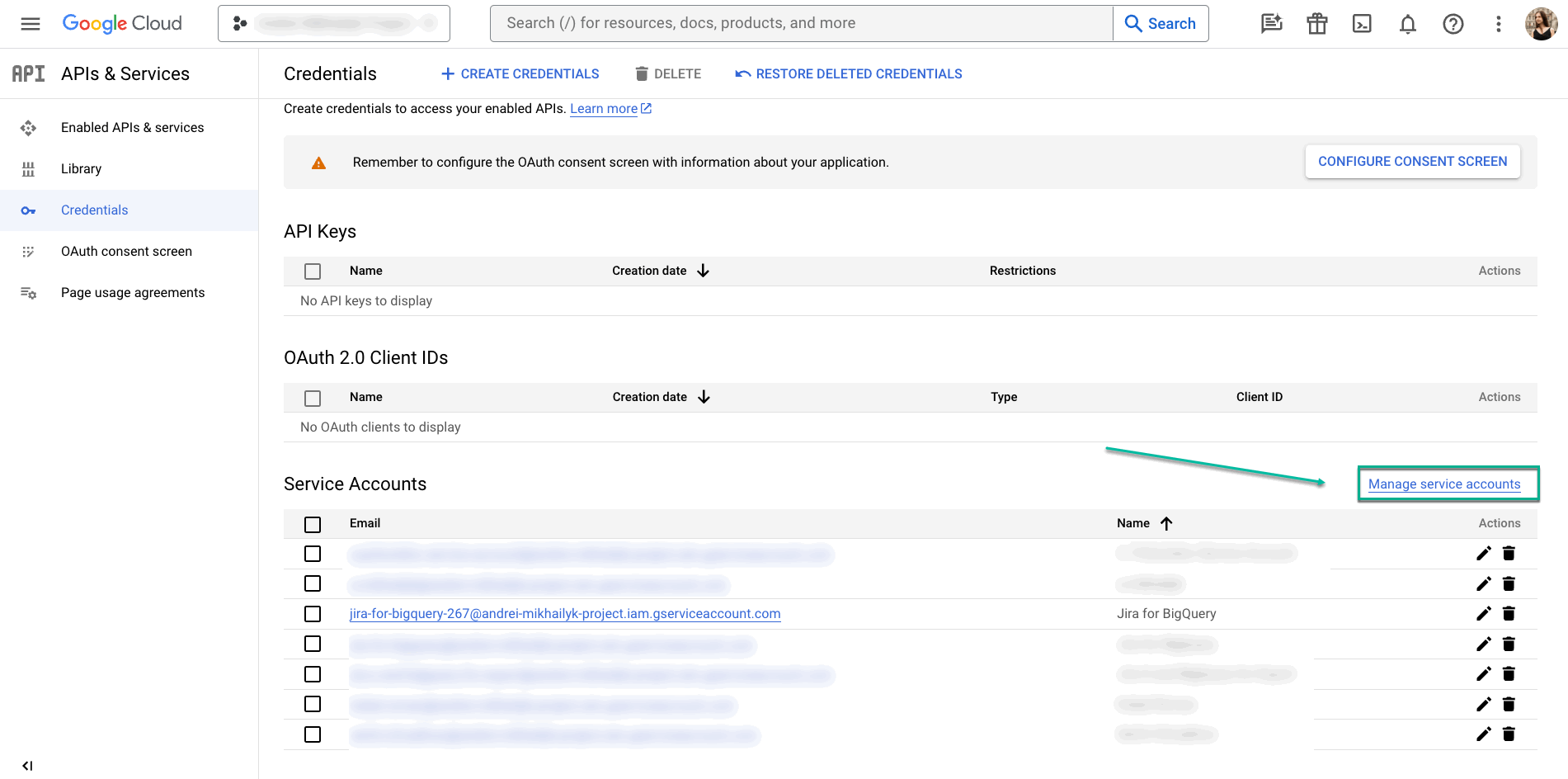
To do this, select "Manage service accounts," find your service account.
Click on "Actions," and choose "Manage keys."
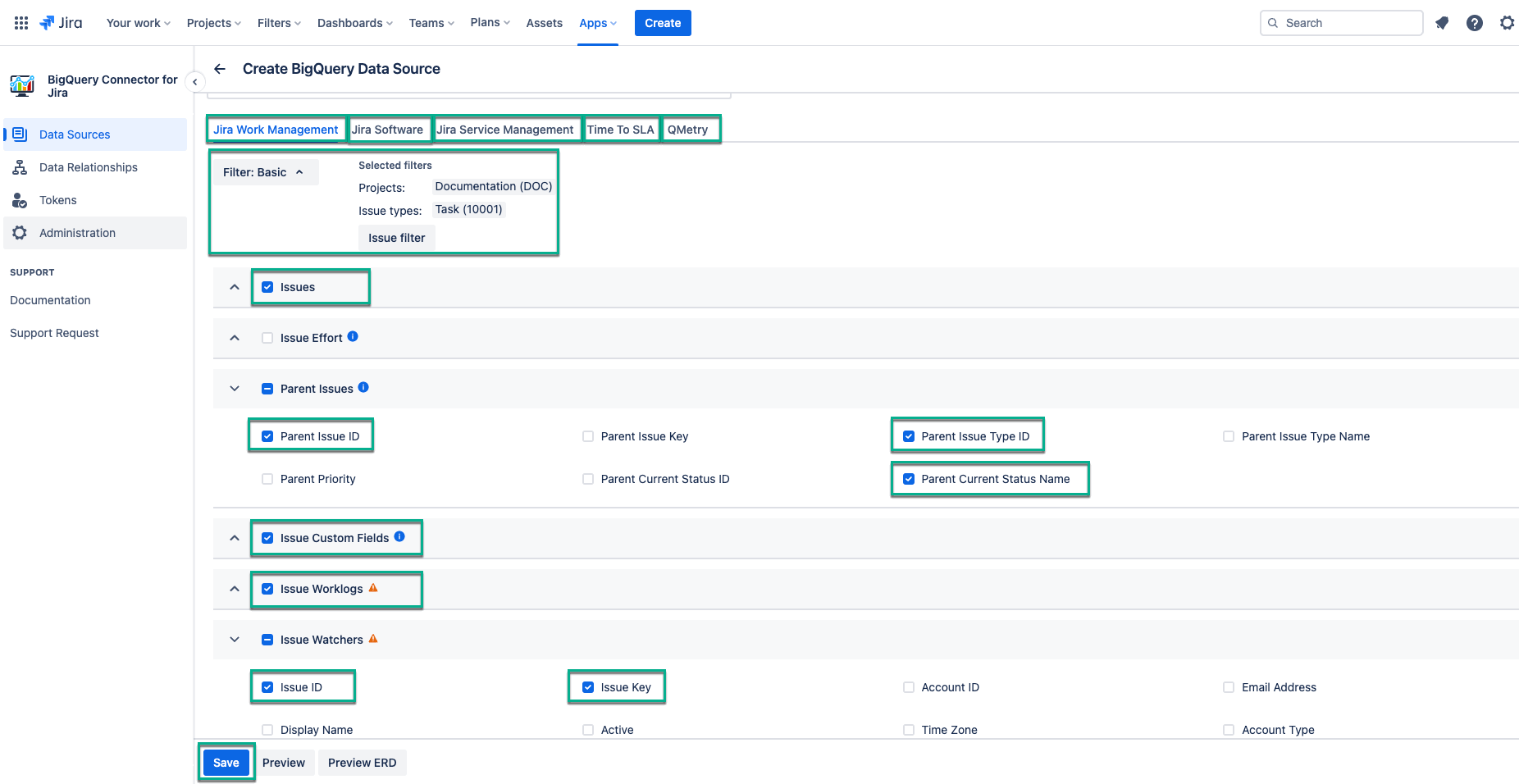
Click on "ADD KEY," select "Create new key," choose JSON, and click on "CREATE."
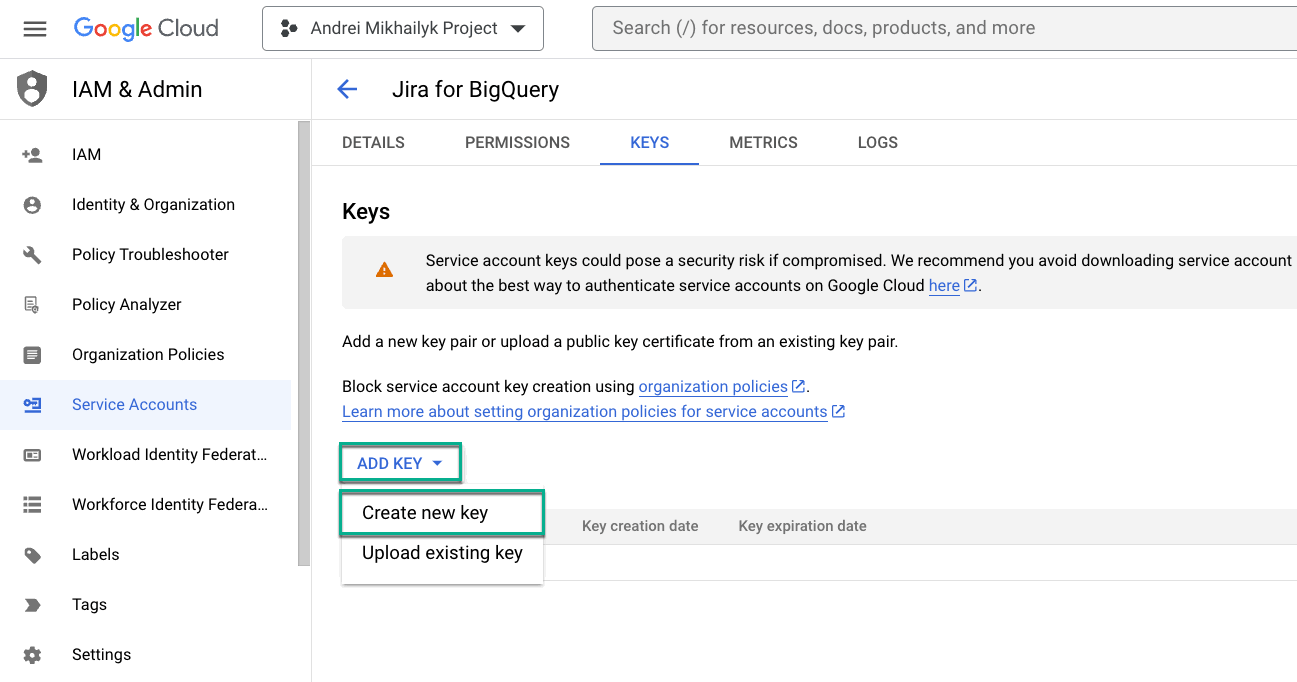
Choose JSON, and click on "CREATE."
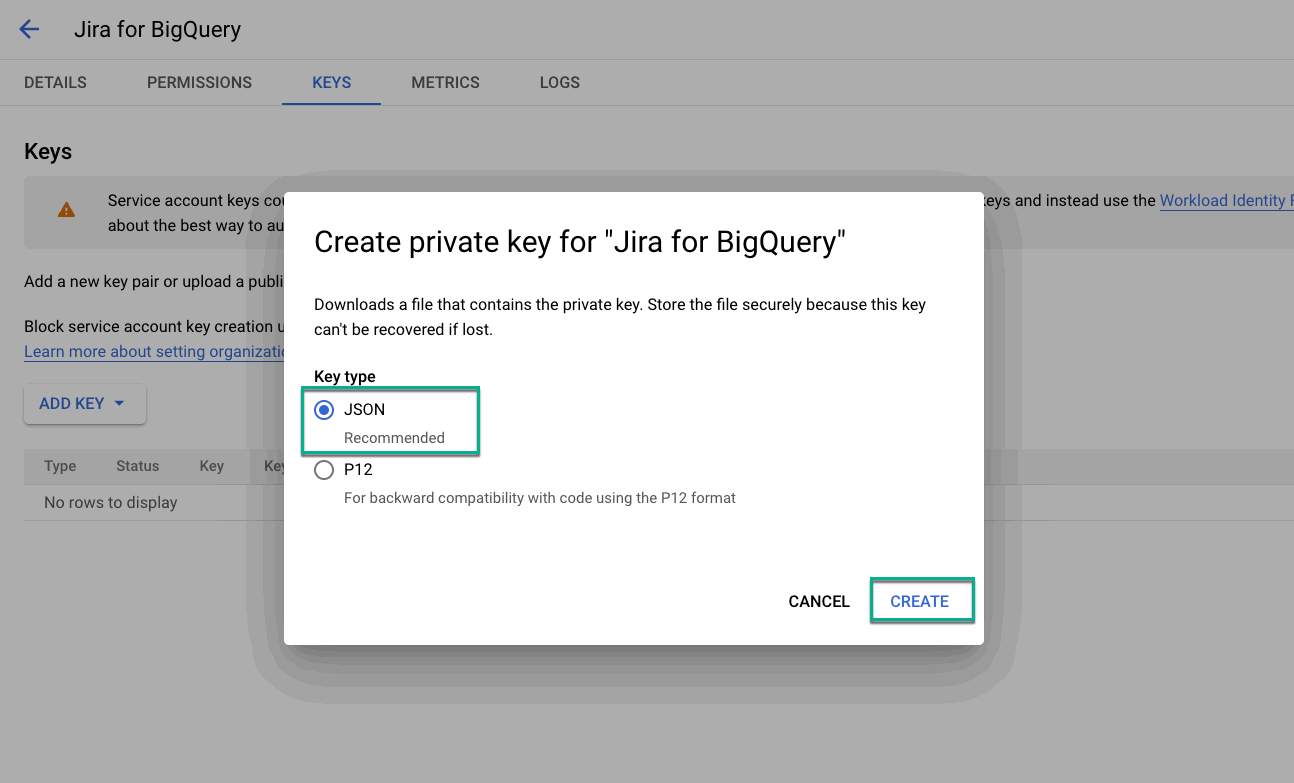
While logged into your Jira Cloud instance, go to the "Apps" section and choose "BigQuery Connector for Jira." Click on "Create data source."
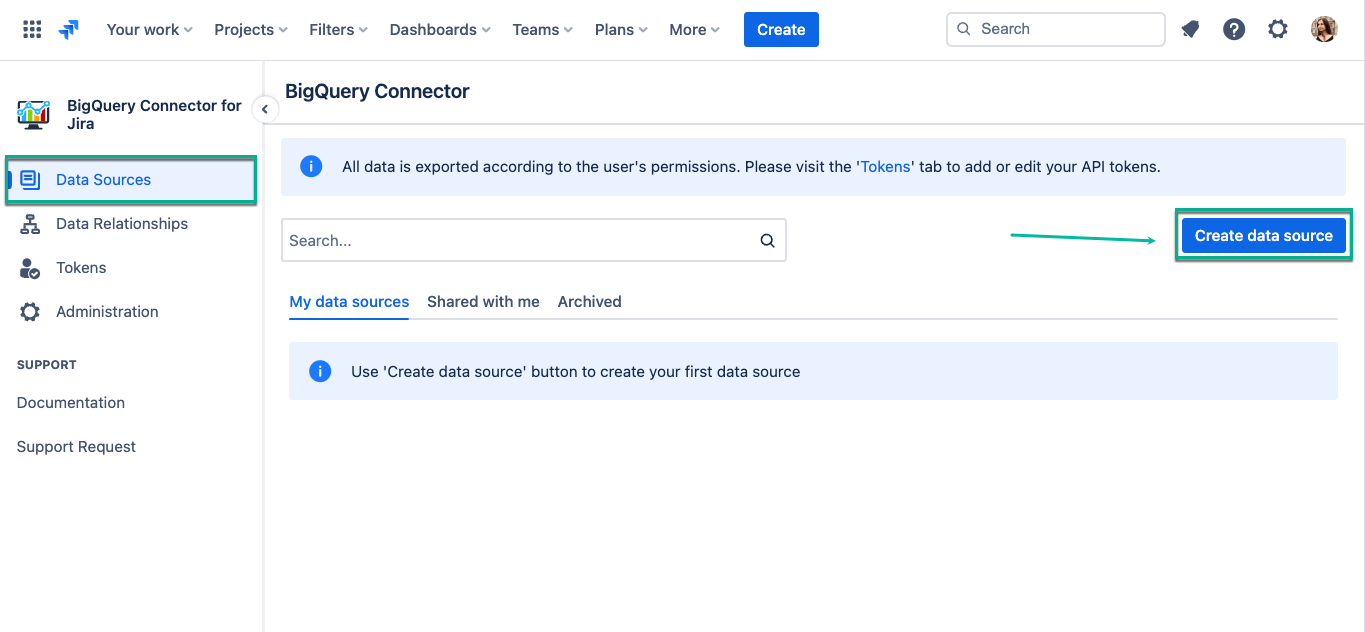
Enter your data source name in the "Name*" field and the dataset name for data export in the "Dataset name*" field. Optionally, describe and specify users or groups to share the data source with.
From the drop-down lists, choose your data source's desired filters and fields and click "Save."
Filter options include "No filters" (default for all data), "JQL" for flexible searches, and "Basic" for standard field filters. Adjust as needed.
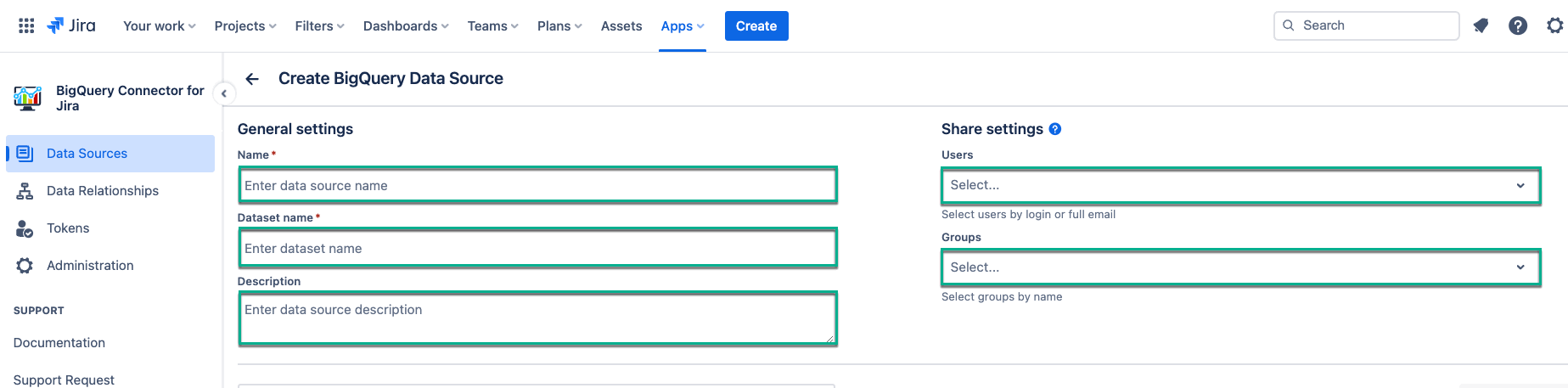
From the drop-down lists, choose your data source's desired filters and fields and click "Save."
Filter options include "No filters" (default for all data), "JQL" for flexible searches, and "Basic" for standard field filters. Adjust as needed.
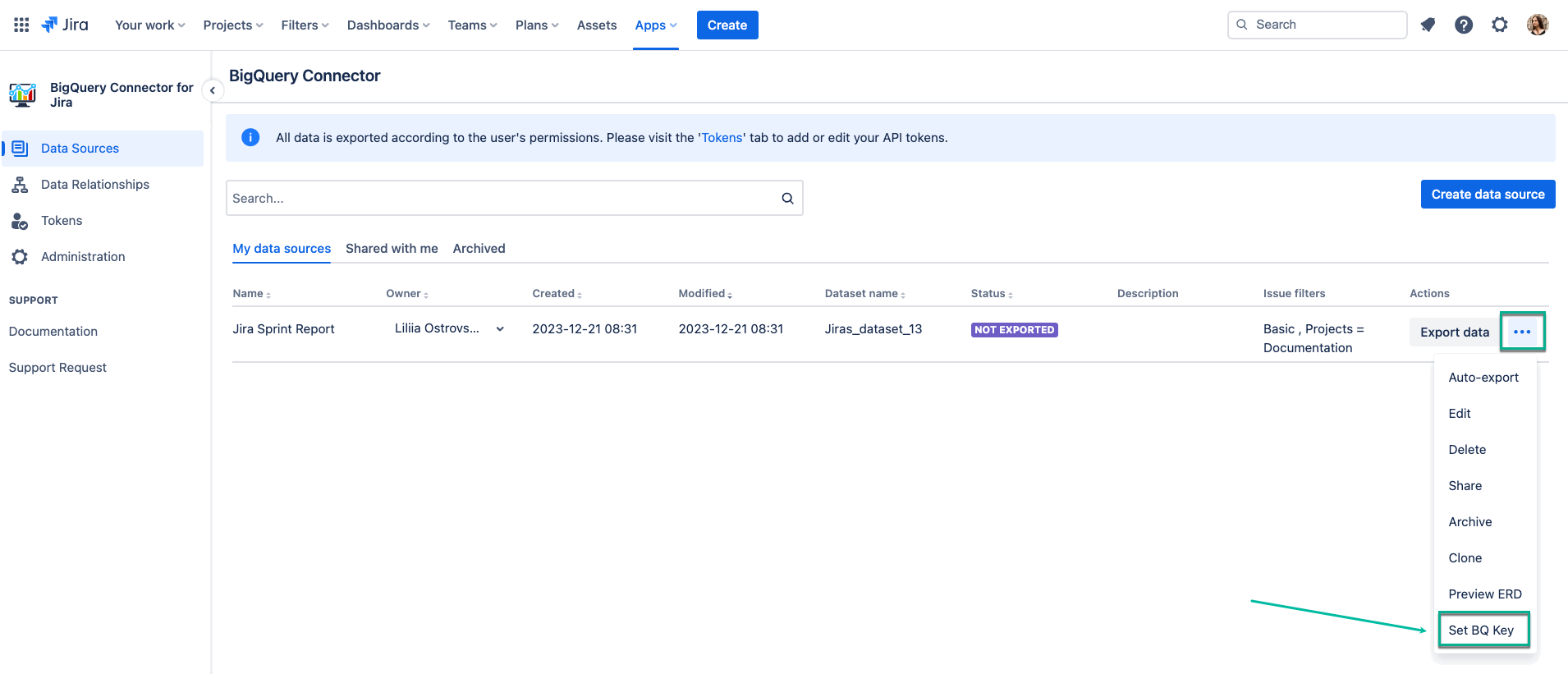
After creating the data source, it will display a status of "NOT EXPORTED." Click on the three dots and select "Set BQ Key." The term "BQ key" refers to the service account key.
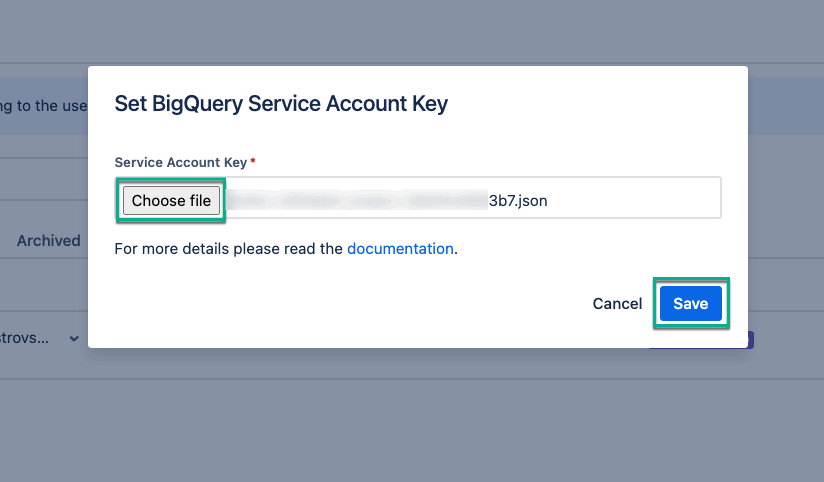
Upload your service account key by choosing the file and then click "Save."
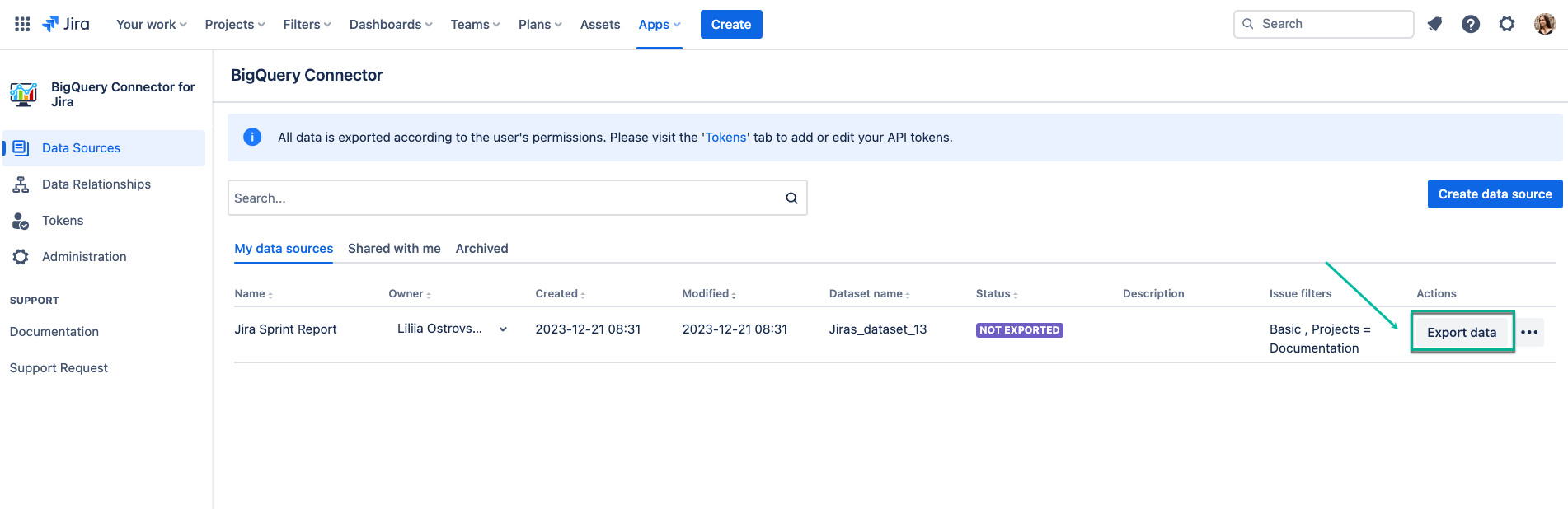
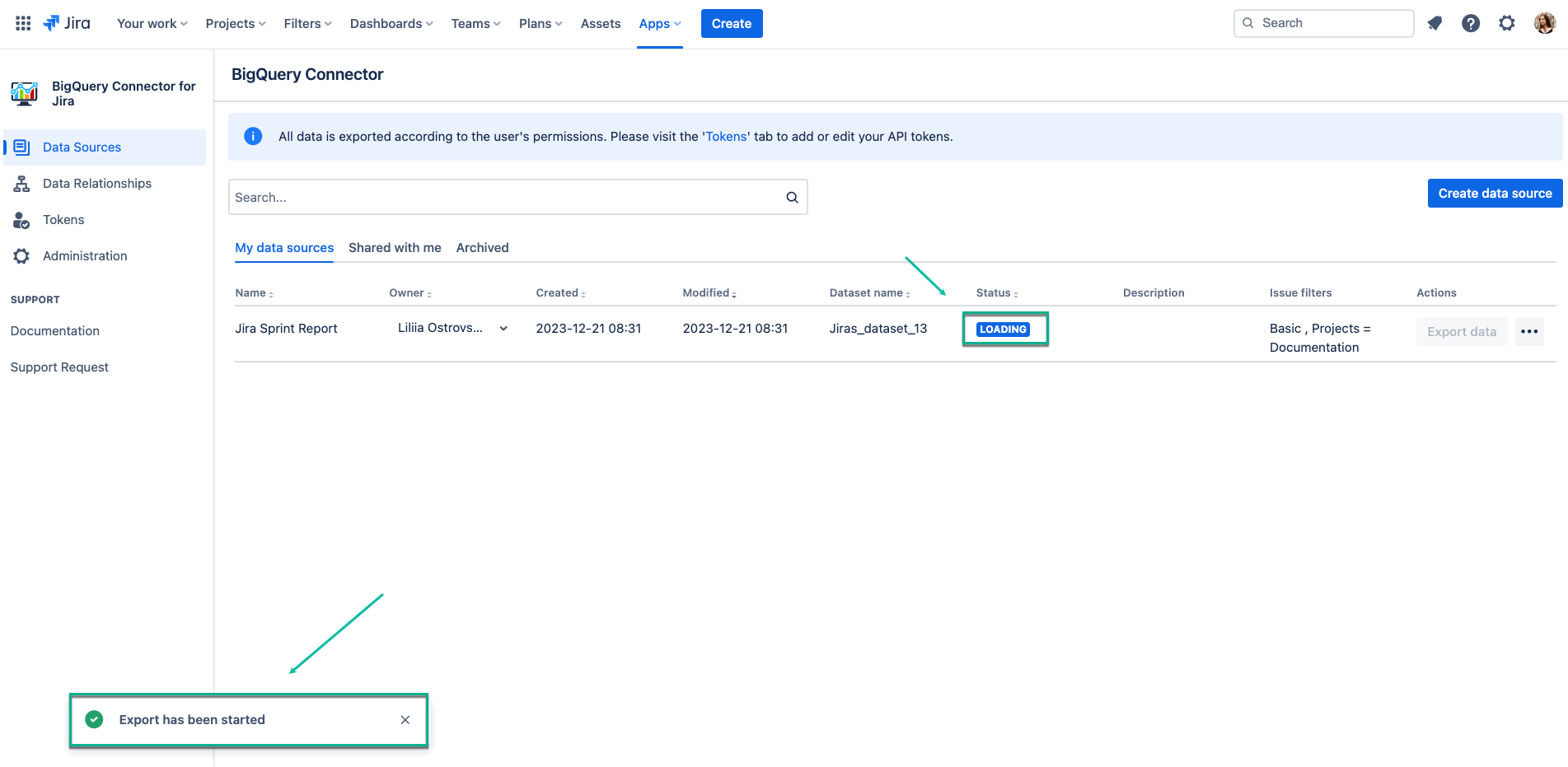
Next, select "Export data," the data source status will change to "LOADING." Once the export is complete, the status will become "EXPORTED."
To access your exported data, go to your Google Cloud Platform, select BigQuery, and ensure you have the correct project chosen — the one where you created the service account key. Locate your exported data source using the dataset name you specified during the data source creation.
Once the export is complete, the status will become "EXPORTED."
To access your exported data, go to your Google Cloud Platform, select BigQuery, and ensure you have the correct project chosen — the one where you created the service account key. Locate your exported data source using the dataset name you specified during the data source creation.
For more comprehensive instructions, refer to the documentation page.
Setting up Jira BigQuery integration using the outlined steps provides a streamlined approach to enhance project management and leverage the analytical power of BigQuery. The user-friendly nature of the BigQuery Connector for Jira ensures that even those without extensive technical skills can navigate the integration process effortlessly. The power to effortlessly load Jira data into BigQuery and the versatility to customize data sources make this integration a valuable asset for project managers, analysts, and business intelligence professionals.
BigQuery Connector for Jira
Connect Jira to Google BigQuery effortlessly for large-scale data analysis and integration, enabling efficient data management, improved decision-making, and enhanced performance at scale.
Start a Free TrialExplore the best OKR software for goal alignment and progress tracking. Compare top tools and learn how Tempo enhances OKR visibility in Jira.
The AI in most project management tools reads a synced copy of your data. See which of eight platforms reach live portfolio data for 2026.

Learn about the Ivy Lee method, a proven productivity technique that helps you prioritize tasks, sharpen your focus, and accomplish more each day.

Learn how process mapping can improve efficiency across your business, from projects to cross-functional operations.
Take control of your project management tasks by implementing project planning tools to foster collaboration and increase team productivity.

Learn effective IT project management strategies to optimize resources, manage scope, and keep projects on track for successful outcomes.

Learn how implementing Agile at Scale can level up your organization. Improve efficiency, responsiveness, and innovation to transform your business.

Learn practical strategies for first-quarter planning to set a positive tone for the year, enabling better resource allocation and strategic alignment

Learn the best ways to adopt the agile leadership model at the organizational level and how it improves communication, collaboration, and productivity