Celebrating team performance and individual success is important for building camaraderie and keeping everyone focused on achieving project success.

There is a couple of ways of connecting Jira and Microsoft Power BI, and today we're going to be discussing them.
But first, let's answer this simple question: why would you need to connect these programs in the first place? Jira is a tool originally built for establishing an easier way of communication between developers and testers or software users. But, it turned out to be quite handy for organizing work in companies that don't necessarily involve program/game development and collecting raw data on how each task is handled.
Microsoft Power BI, on the other hand, is a business intelligence tool that's helpful for turning that raw data into easy-to-read charts, graphs, and other visual elements on streamlined dashboards. It's much easier to look at a couple of graphs and understand what's actually going on within your company, which tasks are handled well, and which ones need extra time to finish.
Carefully analyzing your team's performance is also a vital step in improving your business strategies to achieve more goals, faster. If you haven't used business intelligence tools before, you're missing out on a lot of potential.
So, how do you connect Jira to Power BI?


Before using Jira's REST API, you will have to check in with its documentation first and see if the types of data it supports align with what you actually need. This is because it doesn't support all types of data.
You also have to keep in mind that the API is not exactly an export tool, but rather something that allows you to develop a custom solution in your coding language of choice. Of course, it takes a lot of skill and can be pretty time-consuming. You will also need to make sure your solution works with Power BI.
It's free if you do it yourself, but if you have someone working for you to develop your solution, it's going to cost quite a bit since the process isn't particularly simple.
The REST API also limits the number of issues you're able to export to 1000 at any given moment, so you will have to do it in batches.
But, in the end, you will have a custom solution that can be as sophisticated as you need it and perfectly tailored to your specific requirements. It will be a good choice for using in the long-run since it requires time to develop and to teach your team how to use it.

If developing your own solution doesn't quite fit in with your schedule, or you're looking for a way to quickly link up Jira with Power BI desktop, using a connector add-on will probably suit you much better.
Power BI Connector for Jira from Alpha Serve is the best solution here.
It's a ready-made solution that works right out of the box. All you really need to do to use it is to grab it off the Atlassian Marketplace. It costs $10 for 10 users per year, but there is also a free 30 days trial that's available to you in case you wish to try it out before purchasing. The Cloud version of Power BI Connector For Jira is free for small teams up to 10 users.
The best thing about using connectors such as this one is that they require no additional skills and knowledge to install and use. You don't need to have any kind of technical background to create an export link. You need administrative privileges to install it though, but even if you don't, you can share the application with your admin and install it that way.
It makes exporting extremely simple. It also supports all fields of data, including tables, custom fields, history, Jira Service Desk, Tempo Timesheets, Tempo Planner, Portfolio for Jira, Agile, Insight, and others.
By default, only the Jira admin is allowed to work with the connector since not all users should have access to it. But you can adjust permission settings if you go to the Manage Apps - Plugin settings in the left navigation menu of the Power BI Connector for Jira.
Let's take a look at how you export your data using this simple but effective tool.
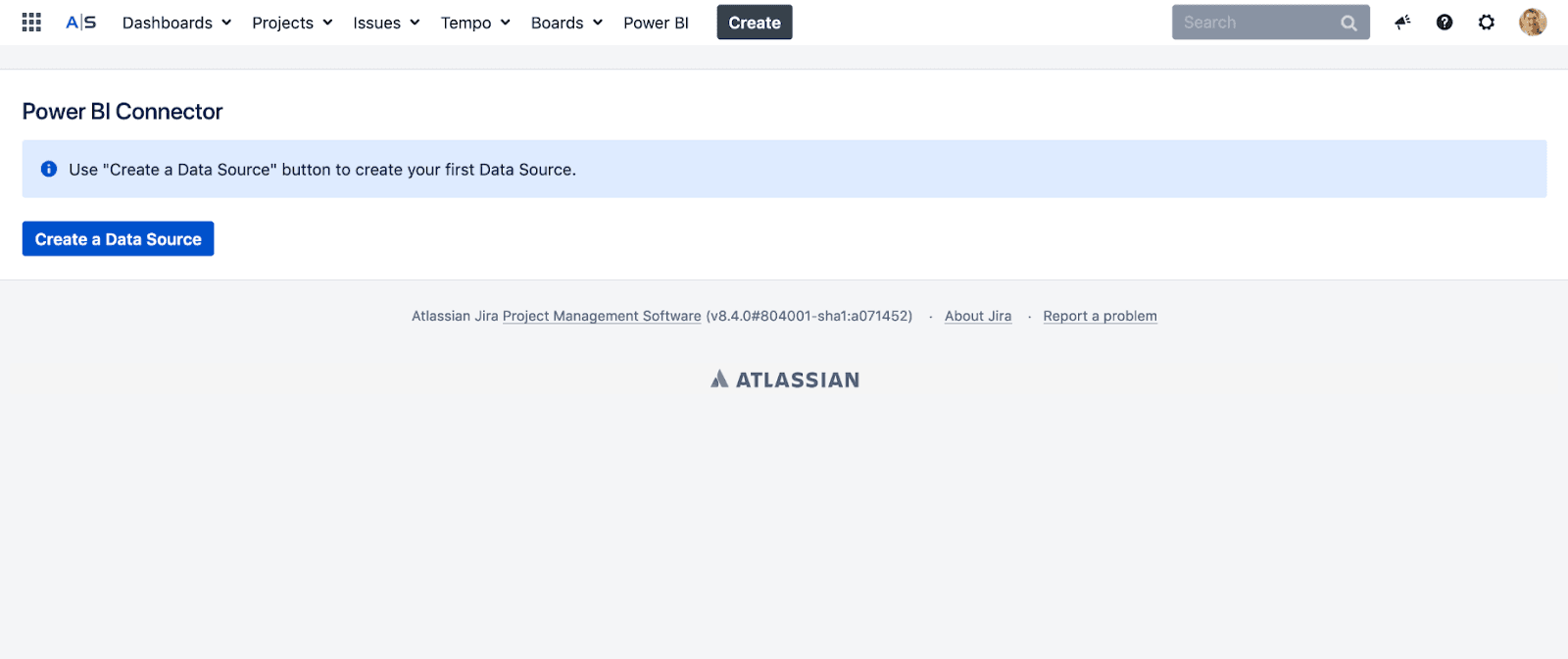
First, you need to create a data source. To do that, go to the Power BI tab, select "Data Sources", and click the "Create a Data Source Button". You will also need to give your connector a name. Something like "Jira Data" will work perfectly
Next, choose the sharing settings and add users that should have access to the data (by default, it will only be available to you).
Now you can adjust filter settings and organize data by projects, issue types, assignees/reporters, date range, or status. You can also apply any queries using JQL or use your existing Jira filters by copying the JQL query and pasting it there.
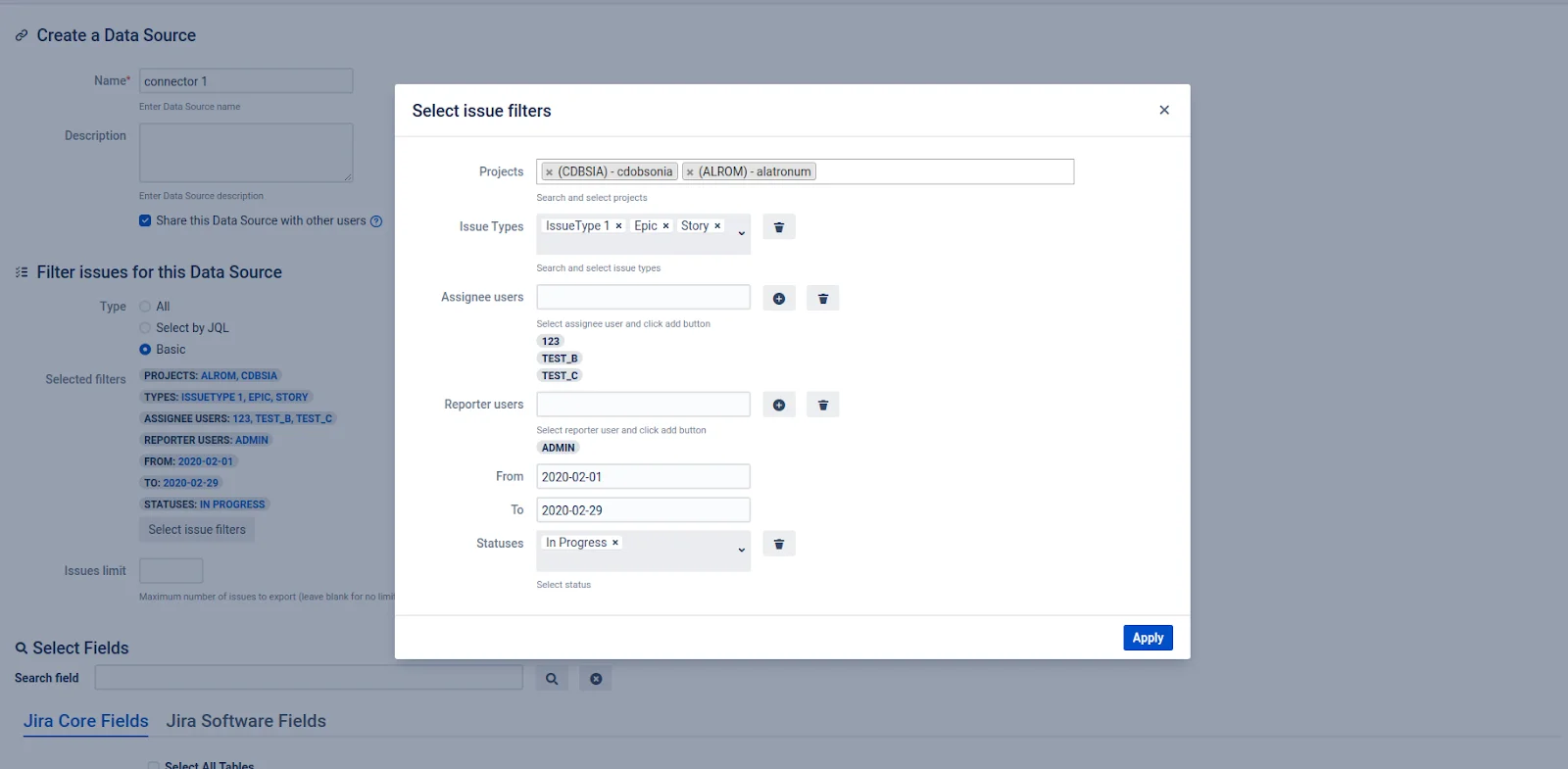
Select the fields you wish to export from Jira, and click "Create". The application will generate a data source link for you. Copy it, select "OData feed", paste the link, and hit "OK".
Almost there. The system will request your Jira credentials, and authenticating all you have to do is press "Connect", and select the fields you wish to load. Just wait for them to load, and you're done.
So, we've looked at two ways of exporting Jira data to Power BI. Using the Jira API to develop your own custom solution, which is best for long-term usage and takes a bit of time to actually create, or implementing a ready-made connector that allows you to export data within minutes upon installation (which is perfect for teams that just want to jump straight into the action).
Both variants are completely viable, and there's no be-all-end-all way of doing it, so we would love to hear your thoughts on doing it. If you have your own ideas for exporting Jira data to business intelligence tools, we would love to hear them as well!
Celebrating team performance and individual success is important for building camaraderie and keeping everyone focused on achieving project success.

Learn resource planning to increase the likelihood of project success. Deploy company assets and workers to deliver outcomes on time and under budget.

Learn how agile project management helps teams stay flexible, work smarter, and deliver results faster. Explore key principles, methods, and benefits.

Explore alternatives to a SWOT analysis, including SOAR and NOISE. Determine when to use these methods to get the most from your business analytics.

Discover how a postmortem meeting can help your team review projects, learn from mistakes, and improve for future success.
Create a project dashboard to track progress, enhance collaboration, and streamline workflows with actionable insights.

Compare Swarmia and Jellyfish on DORA metrics, integrations, AI cost tracking, and capitalization to find the right fit.

See where shared capacity actually went. Team timesheets roll up Jira worklogs by person, project, and account so managers spot overload fast.

Learn about IT service request management and discover best practices to help your service desk deliver outstanding client support.