Learn what KPI reporting is, explore key metrics and examples, and discover how Tempo helps teams track performance directly in Jira.

In this article, we are going to talk about SourceTree. If you are not sure about the definition and purpose, read on. You will get answers to most of your questions earlier than you see the final paragraph.
SourceTree is Mercurial and Git Client. It is available for both platforms powered by Windows and iOS. The software is free. Sourcetree is newbie-friendly. It features an intuitive graphical interface for repositories bridging the gap between a user and a Git. Utilizing technology you will quickly master repository. As to mature developers, they will also benefit from using the sourcetree as it allows them to focus on writing code and being more productive.
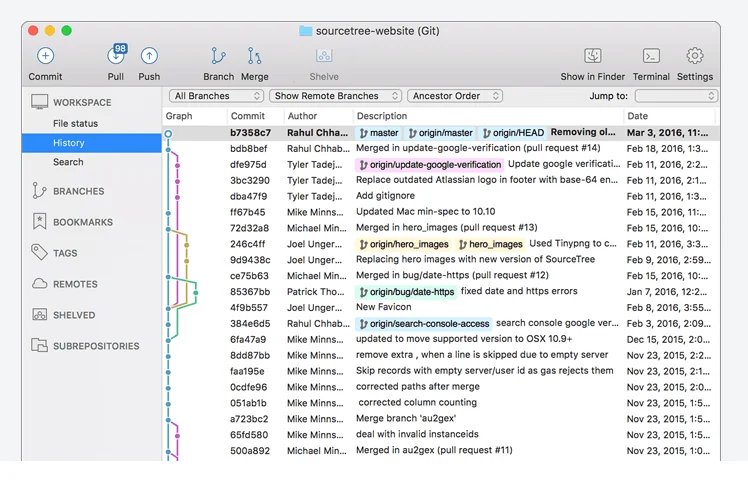
If you are a beginner, you will love avoiding the command line. Sourcetree provides the required control, which is much more speedy.
If you are an expert, your efficiency will significantly increase. Sourcetree enables you to review changesets, stash, and pick out the branches you are interested in.
We perceive the information much better when it's visual. Sourcetree makes data on any branch accessible and enables you to contribute in a single click.
Place Git and Hg right on the desktop of your computer for faster access. Boost the efficiency of your development eliminating all extra steps.
Sourcetree is more than a Git GUI, it enables you to utilize all the power of Git through the simplified interface.

Using the Client you get on top of the tasks you are working at. You don't have a single chance to miss anything. Get updates associated with your code on the fly.
Track your progress visually. Review informative branching diagrams and achieve team objectives keeping up the good job.
SourceTree is compatible with two popular OS, so you can harness the power of Git no matter of your preferences (Windows or Mac).
Working with Git properly requires extensive knowledge. Learn from detailed tutorials throwing light at merging, branching, and many more aspects.
Your team can keep an eye on big data assets from a single location thanks to SourceTree support of Git Large File Support.
You don't need to leave the SourceTree to find branches, commits, and file changes, do it within the app.
SourceTree and out-of-the-box git-flow branching allows you to keep the repositories clutter-free, which facilitates high-capacity development.
You will like the interactive rebase tool the SourceTree offers. Use it to make commits cleaner and clearer.
Manage your projects smarter with Submodules. Group them, set dependencies, and do other helpful things.
Find and make copies of remote repositories via a user-friendly SourceTree interface.
When you work in a team, some members or all of them work remotely. This is not a problem as today's technologies including SourceTree allow us to manage projects from any location.
The thing with the SourceTree is that it allows syncing work and management of projects stored on Git.
For instance, you can start by creating a project on Github and then connect it to your SourceTree software so that later on, when you update your code or include new code you can upload the data on Github using SourceTree.
To start work with SourceTree, create new project on GitHub (click 'Start a Project'.)
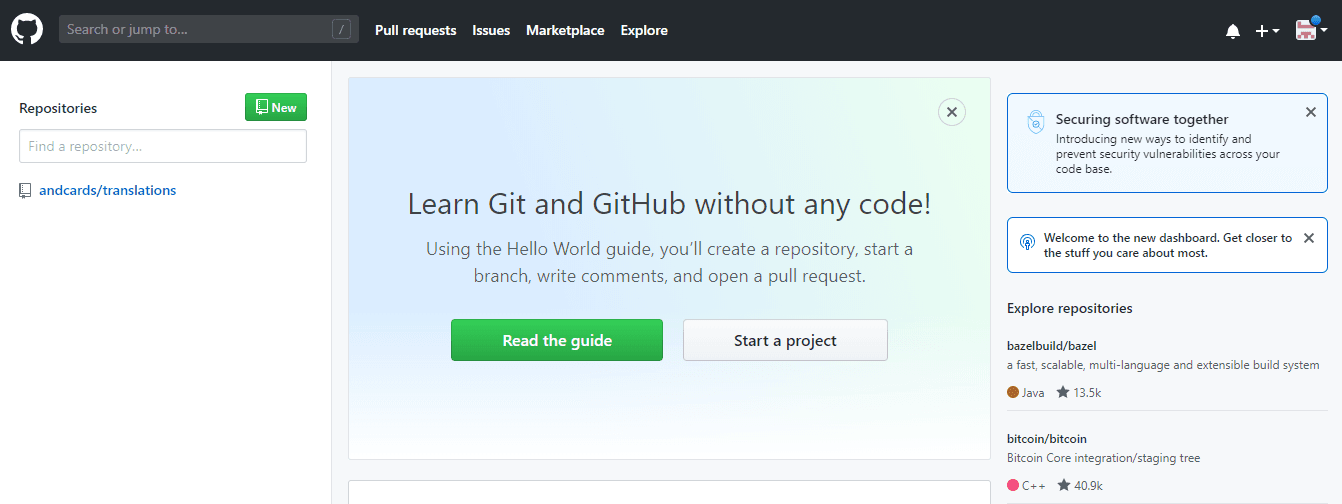
Then you will need to fill in various information in the repository. This is necessary to leave clear prompts for people associated with the project.
2. You need to name the repository. Then briefly describe what is the repository all about.
3. Defining the visibility of your repository, you have two options - make it Public or Private. If you mark your repository as public, anyone around the world can see your repository, clone it, and start working on your projects. If you keep it private, your repository can't be shared by anyone other than team members associated with you.
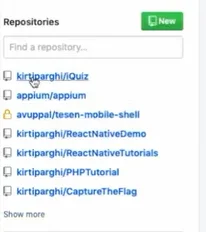
4. Then you need to initialize your repository with README, which is basically a file that defines a list of information. Doing that, you will be able to create a new repository with a README file on click. All your available repositories will be visible on the left side of the dashboard.
5. You can enter any repository, click 'Clone or Download' and see the dropdown. Copy the web URL and go to SourceTree.
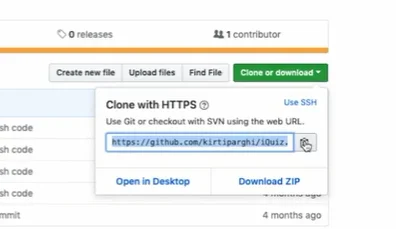
6. Open a clone form and paste https into the "Link to source" field.
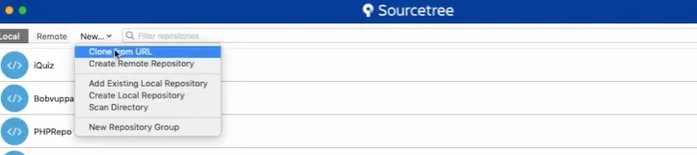
7. After that, you will have to define the 'Destination path' and 'Name'.
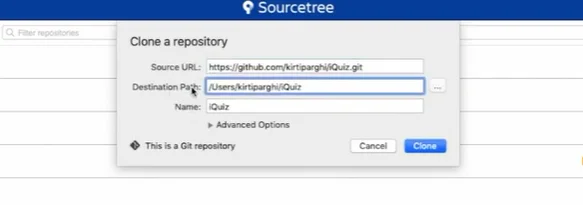
Here I need to make a small note:
A branch is basically a separation of the module that you want your team members to work on. If you want several team members to work on the same task simultaneously, you create a branch for that, assign team members to the branch, and start work.
What we are doing is fetching the master branch which in its turn will fetch the whole project into your local system. You can enter the clone project and see who has committed the latest code and who is working on the project. On which model each team member is working right now. You can see a list of updates for a particular project.
8. You can create a new branch from 'Branches' tab.
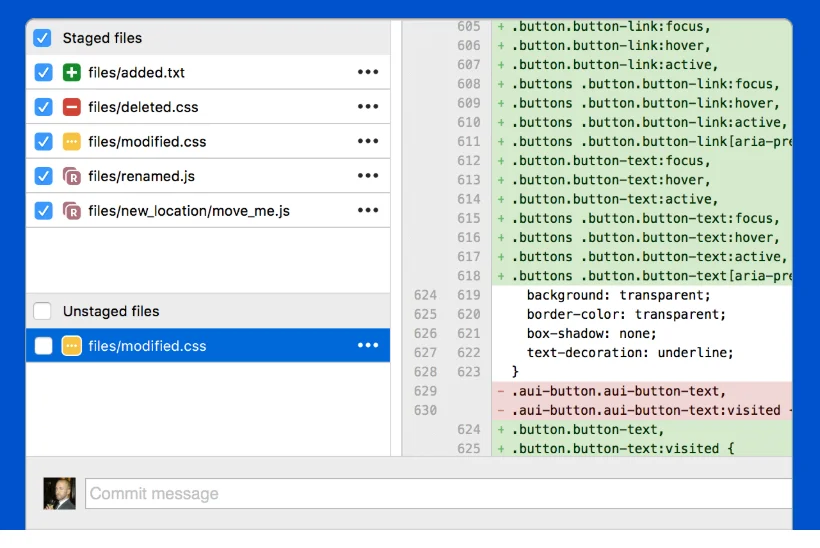
You will see the files that have been changed. If you want to upload those changes, you need to follow a certain procedure of saving information or code on GitHub.
a) At first, you need to select the items you want to push on. List the items you want to commit in the input field.
b) Then tick 'Push changes immediately.' The software will push the changes to the relevant branch when you click the 'Commit' button.
c) Click 'Push' on the top right. After that, you will see the drop-down with repositories. Here you can define which brunch to upload code to.
This is how the SourceTree communicates with GitHub and uploads changes. Now you can see the changes on GitHub after you refresh the page.
This is an introduction to the SourceTree. Now you can start to work with the app, create a new project, connect it to the SourceTree, upload the information on SourceTree, connect it to GitHub and let them communicate with data and upload those changes on GitHub.
Hope this article helped and now you know what is SourceTree and what can it help you with. Are you going to start using SourceTree to visualize Git processes? Do you agree that using a command-line limits the view and you can't observe what's going on in the background? This can be especially confusing when you manage large projects that include lots of branches, developers, and commits. SourceTree can sort things out for you. The great news is that the software is free to download. Does this make sense to you?
Learn what KPI reporting is, explore key metrics and examples, and discover how Tempo helps teams track performance directly in Jira.

Build a workload management dashboard in Jira with Custom Charts. See assignee load, WIP, and time in status on one screen to rebalance work fast.

Feeling overwhelmed? Need more hours in the day? Time blocking can lead to fewer distractions and better time management.

Learn how performance review templates help managers give clearer, more constructive feedback to bolster team goals and support employee growth.

Track key metrics in real time with a KPI dashboard. Learn how to build one, explore examples, and improve visibility using Tempo’s Jira-native tools.
Learn how lead time vs cycle time reveals where work slows down, and why tracking both is essential for reliable delivery and strategic forecasting.

Structure's portfolio-management capabilities by help you create data-informed timelines, adapt to the unexpected, and deliver results more reliably.

Known as "Eat the frog," this oddly named technique helps tap into productivity, overcoming procrastination and lack of motivation.

Effective resource utilization will optimize your team’s productivity and efficiency. What’s more it will increase morale and improve your bottom line