Everything you need to know about ServiceNow and Tempo’s connectors, why you should connect these tools together, and the use cases.

Incidents happen – its an unavoidable part of work no matter how undesirable their consequences are. You need to be prepared for when problems rise up – which is why any larger organization needs an incident management system that is up to the task.
The ability to analyze data from those systems can provide valuable insights, enabling proactive management and preventing your incidents blowing up to full-on disasters for your productivity, processes, and public perception.
This article will cover how you can create ServiceNow incident management dashboards in Microsoft’s Power BI, the core KPIs to track, and top tips for making management dashboards.

No matter how good you are as a company – incidents can’t be avoided. Even the best team can have customer claims, functional errors, or safety issues.
However, sometimes even small technical issues have big financial impacts. According to an IDC survey, small issues can lead to losses that range from $137 to $427 per minute for small businesses and as much as $1 million per hour for Fortune 1,000 companies.
However – it is more than just money. While that is serious enough on its own, here are four more reasons why you should be adding incident management reports into your workflows.
Prevention Being able properly get into the details of your mistakes means you can see the impact it can have on a particular system, customer, or the entire organization. Not just in productivity, but quality and se
curity as well. From there, you can see where might need resources to prevent issues happening again.
Stress saver People can often take mistakes personally and let it seriously impact their performance in the long run – by being prepared and treating it as an expected part of the workflow you can mitigate the negatives before they do serious damage and hopefully your employees won’t beat themselves up too much if they made an error.
Culture creation By publically picking your incident KPIs, you can let your entire team know what the companies values are and how critical health and safety measures are in the workplace. Info on common incidents can also help with employee training courses in future.
Establishing procedure Data from your incident analytics may help managers to create schedules of checks in areas where mistakes are common and build better safety measures for everyone.

So what are the most effective KPIs to track?
Mean Time to Respond (MTTR) This is to track the time between being alerted to an error and getting it resolv
ed. Your safety manager will need to step up to resolve the problem or allocate resources to change your MTTR.
Number of Open Incidents The quantity of incidents with no resolution date.
Mean Time Between Failures (MTBF) Indicates frequency of incidents, highlighting vulnerable systems needing improvement.
Mean Time to Acknowledge (MTTA) Measures responsiveness to incidents after alerts.
Mean Time to Detect (MTTD) Tracks time required to discover issues like cybersecurity threats.
Backlog of Incidents Represents unresolved incidents within a specified period.
Uptime Indicates system operational time, essential for assessing service reliability.
On-call time The time your teams or employees spend on resolving an incident. It may help detect any disparities between workloads.
Timestamps (or timeline) This is when you log information about what happened at specific times during, after, or leading up to the incident.
Uptime This may require third-party tools, but it tracks the timeframe that your systems continued working. By default, ServiceNow Incident Dashboard shows such metrics for:
Number of open incidents
Number of open incidents not updated in the last 5 days
Number of open incidents not updated in the last 30 days
Number of new incidents (per day)
Number of resolved incidents
Incident Backlog Growth
Average age of open incidents
Percentage of new critical incidents
Average number of incidents.
With just those metrics, you can build reports for things like average time to resolve, percentage of incidents created and resolved, and incidents per category. That can get you started on creating a better response – but you can go further.
In the next section, we show what exactly Power BI can do to help.

ServiceNow and its inbuilt dashboard for incident management is key for tracking all of those metrics above. It gives your incident managers the ability to see all these metrics and then build out simple reports to understand their work in ways that would be, frankly, far too much effort to do manually.
Here are a few reasons to consider creating your dashboards in Power BI:
Custom reports catered to your style of business can go a considerably further than the standard metrics.
Enhanced visualization options means you can see your key KPIs and measurements in the fastest and most intuitive form.
Customizable and shareable reports that can be consolidated from multiple different data sources.
Scheduling options so you can receive information on a regular basis.

The fastest and simplest way is to use a ready-made integration app – something like PowerBI Connector for ServiceNow
The app is a good choice if taking into account that it does not require coding or any other special technical skills and is safe for use. The plugin is safeguarded against attacks and does not store customer data. It also makes it possible to limit access to the data for different users.
You can find and install Power BI Connector for ServiceNow here.
Choose the option you need. You can either buy the product or try it for free first. Follow the instructions until the installation is completed. After that, you will be ready to create a new data source. The only thing you should bear in mind is that the app has different roles that grant access to different data. Read more about them in the product documentation.
Once you are assigned to the PBI ADMIN or PBI EDITOR role, navigate to Power BI Connector to create a new data source.
Click New button.
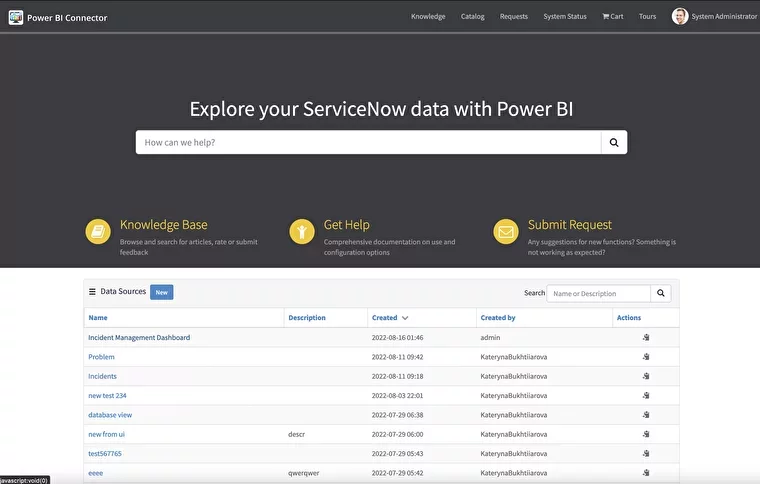
You will see a new form requiring you to fill in the following data: Name, Description, Rows limit, add a table for Export config, and set Use Display Value if you want to export data in string format.
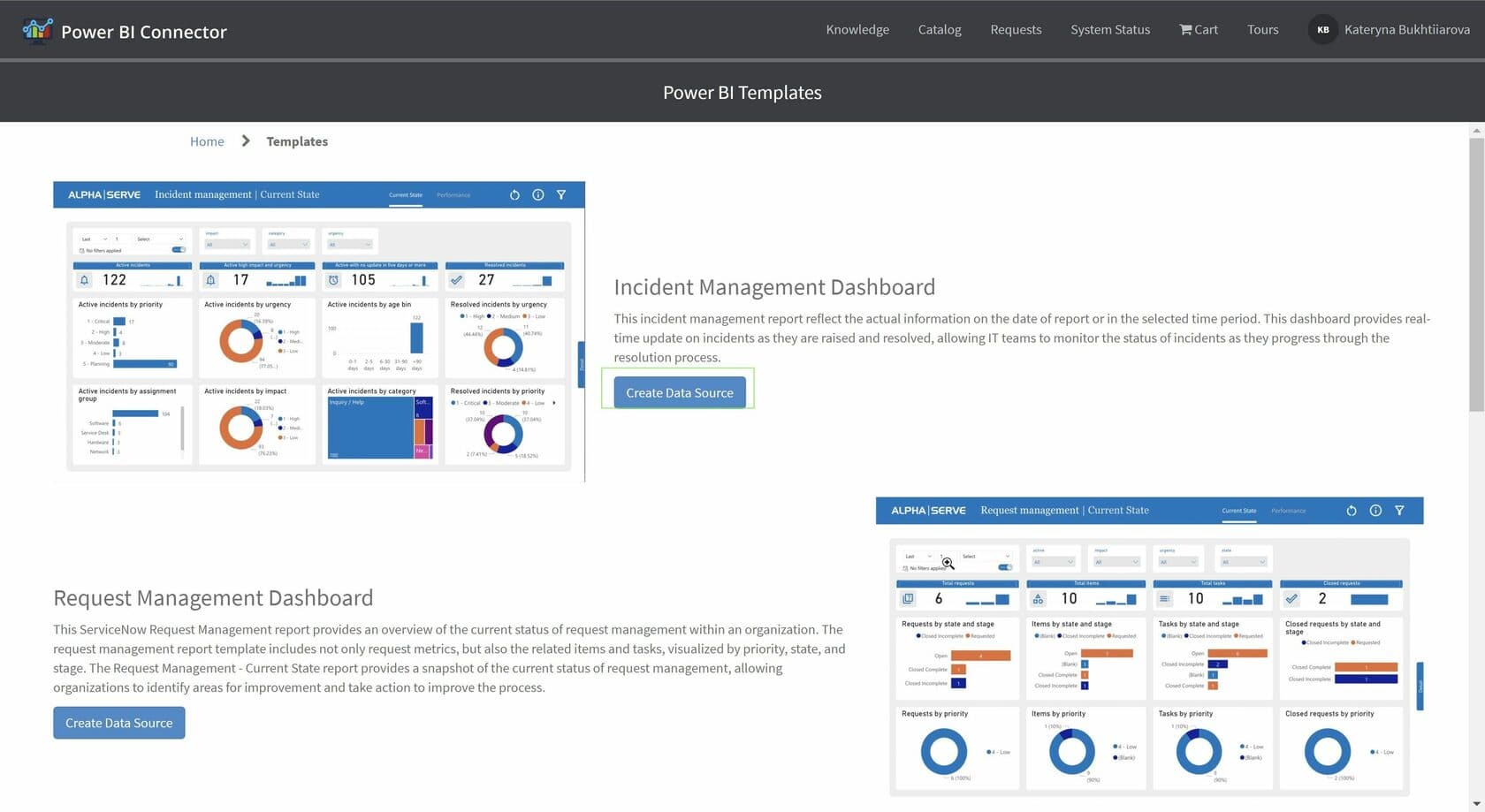
Another option is to use built-in Power BI dashboard templates with pre-configured data sources. You can follow the steps here to select and export "ServiceNow Incident Management Dashboard" template.
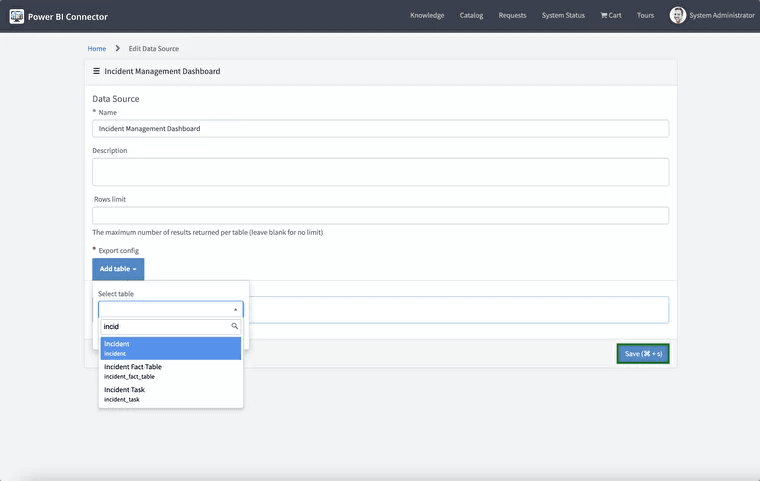
Click the Add Table button.
Find the table you need with the Search field or choose from the list provided. Then click the Add button in the new dialogue window with the preselected table.
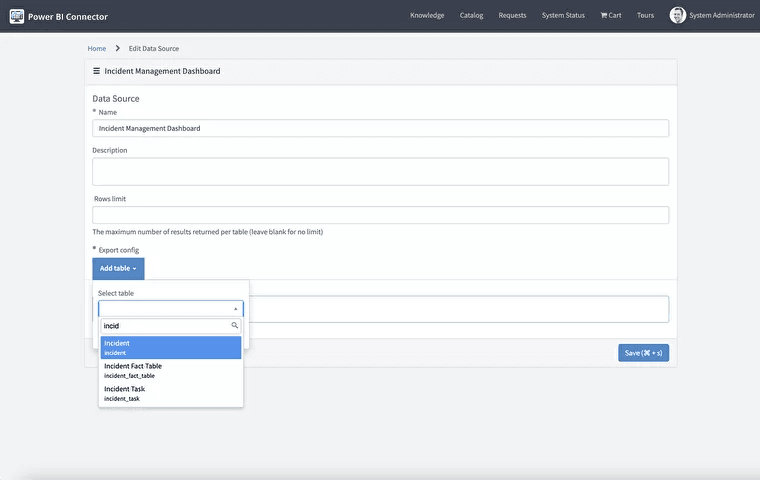
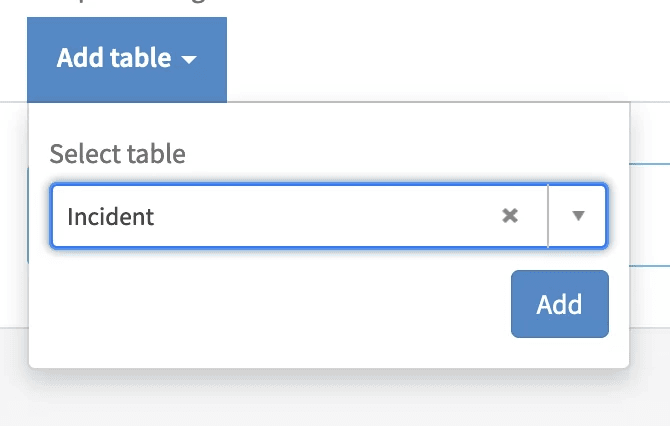
Now you can further narrow your selection by indicating particular fields, using filters, and choosing the data format.
You can choose the suitable fields by checking the boxes in front of them.
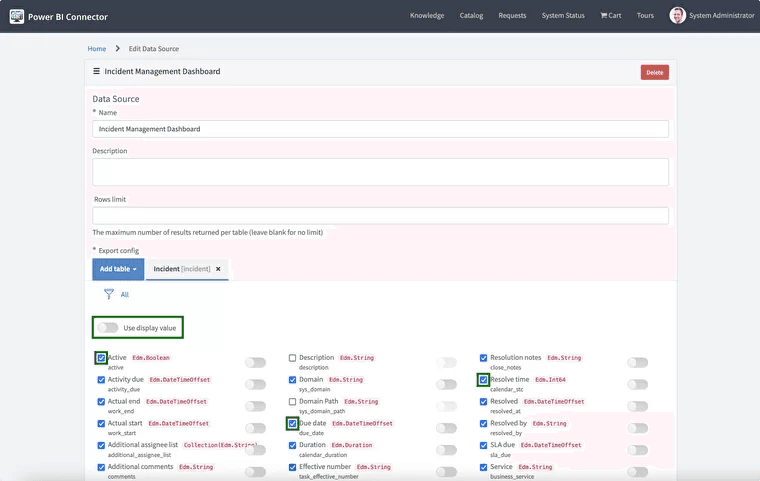
Turn on Use display value if your report requires data in String format.
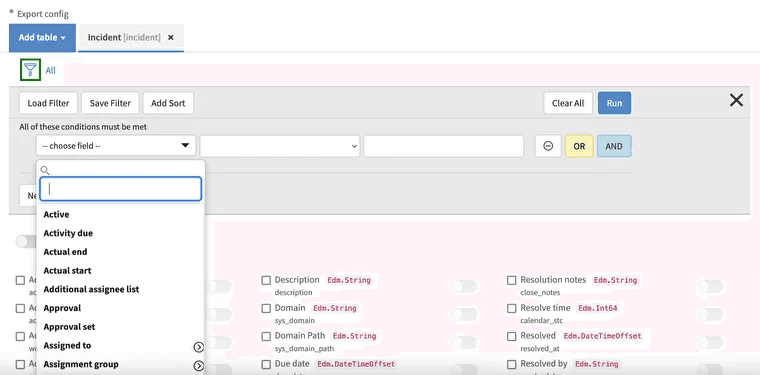
Then you can apply different filters and even modify them to satisfy your particular export needs. To configure a filter, simply click the Filter icon and prescribe the conditions.
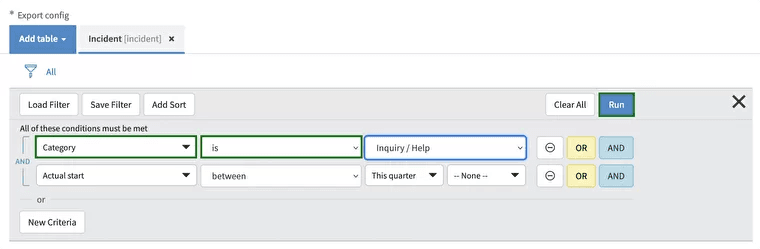
To set a filter, hit the Run button. When you are ready with the selection, click Save at the end of the form.
Navigate to the main menu by hitting Home. Click on the data source with the right mouse button to open the menu. Click Copy OData feed URL or hit the corresponding button next to each data source under the Actions.
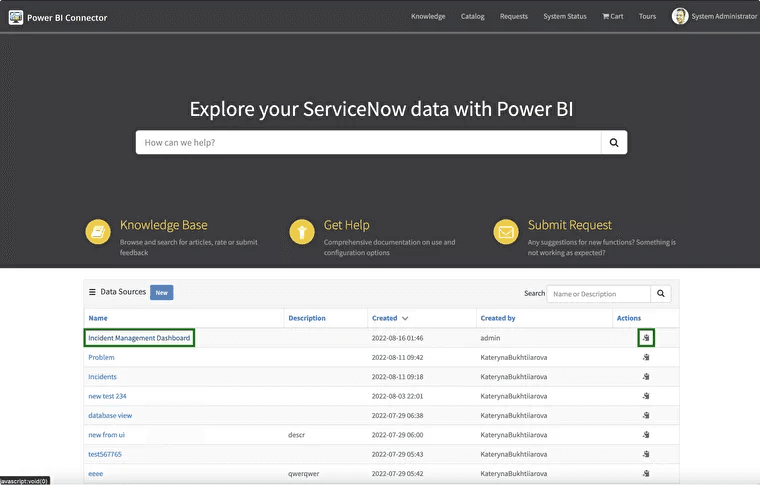
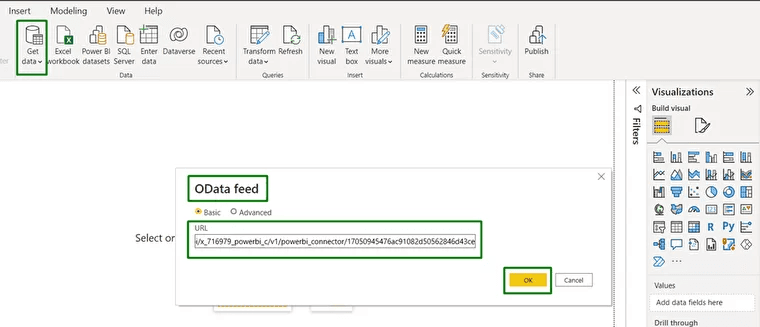
Once the URL is copied, go to the Power BI Desktop.
Click Get Data
Select OData feed
Paste the URL
Click OK.
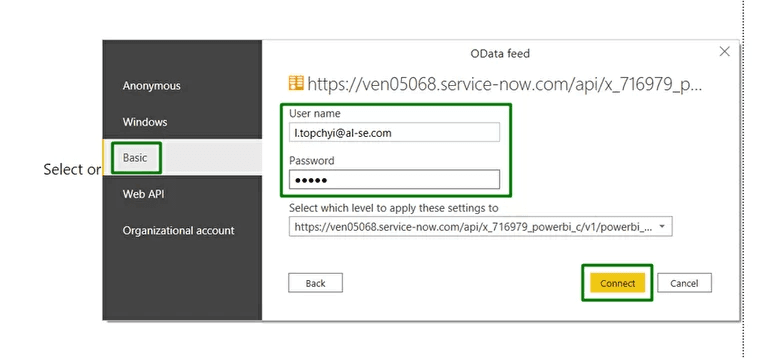
When the new window opens, navigate to the Basic tab. Enter your ServiceNow user name and password. Click Connect to save the configurations.
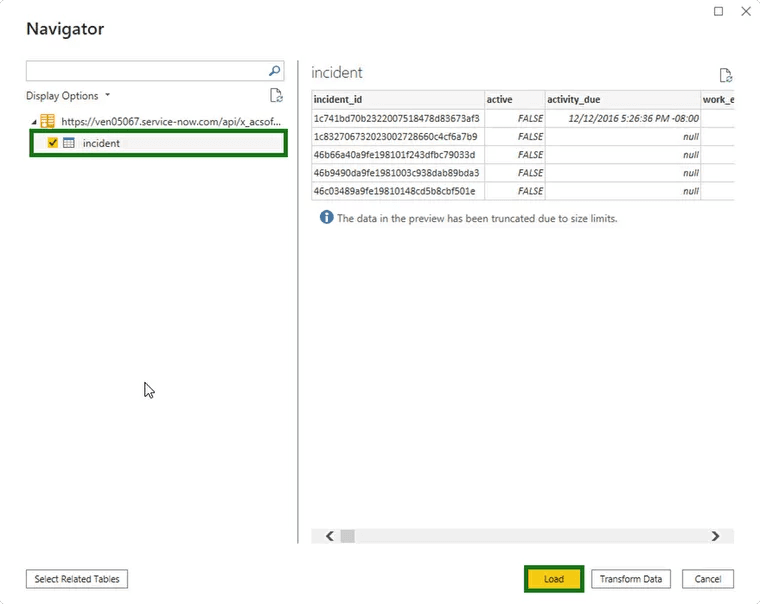
Selected tables will be displayed.
In the Navigator window, select tables for export by checking corresponding checkboxes, and click Load.
You can also refer to this YouTube video if there are still any questions on how to connect ServiceNow to Power BI.
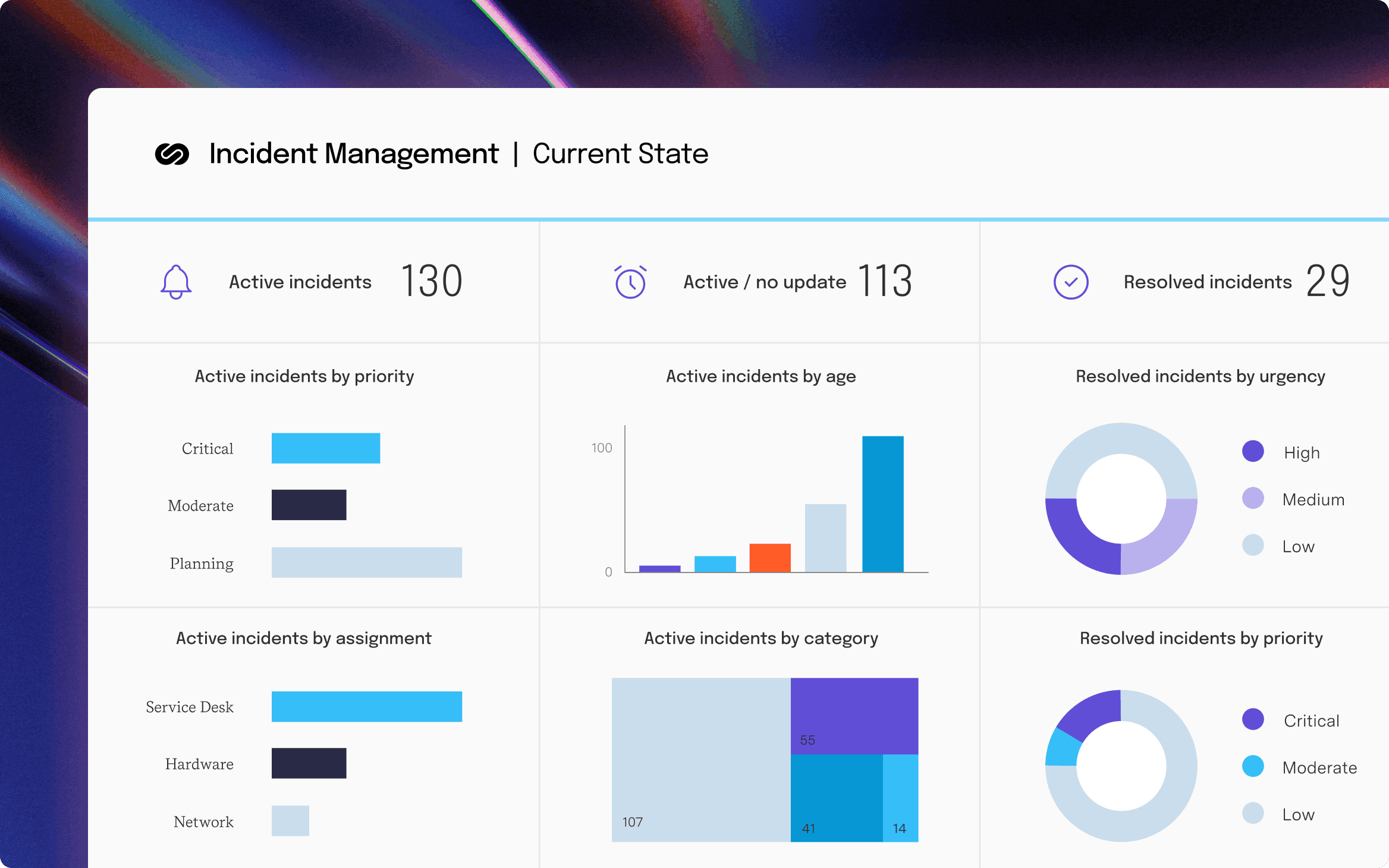
Now you are ready to start building your Power BI incident management dashboard. You should only choose visualization types and relevant data you wish to display on your report.
By tracking and reporting your incidents – you can improve your processes, your uptime, and make sure your weak points are just small bumps in the road instead of serious road blocks.
With ServiceNow, you get inbuilt functionality to track and understand dozens of critical KPIs to take your incident management to the next level – and ensure uptime for your company.
However, if you need more detailed or consolidated reports, what you need are analytical tools like Power BI by Microsoft. Besides the reports themselves, this platform offers broad data visualization functionality, scheduled data exports, and flexible data sharing options.
The way you get them talking together is through an integration app – such as Power BI Connector for ServiceNow. It doesn’t require any additional knowledge and coding skills, ensures enhanced data security, and doesn’t require the involvement of ServiceNow consultants to integrate it into your ServiceNow ecosystem.
Power BI Connector for ServiceNow
Connect ServiceNow to Microsoft Power BI for advanced insights and streamlined integration, enabling comprehensive data analysis and improved decision-making.
Start a Free TrialEverything you need to know about ServiceNow and Tempo’s connectors, why you should connect these tools together, and the use cases.

How to understand, report, and share your ServiceNow data with powerful and customizable Power BI dashboard templates

Do some of your teams use Confluence but not Jira? Find options for getting Jira reports into Confluence & keeping these teams in the loop.

Rewind and Tempo talk about why you need to build a safety net in your systems before working with AI in Jira
All you need to know about SAFe reporting in Jira, the three main areas you need to be tracking, and what an agile release train (ART) is.

Should large companies use big data BI tools for their Jira reporting? Not if they want ALL their people making useful reports. Here's why.

Use these incident response plan templates to prepare your team for cybersecurity incidents. Detect, contain, and recover quickly with confidence.

When things go wrong, a standardized IT incident management protocol can help you and your team get back on track faster than an ad hoc process.

Your developers don't want to do manual time tracking – this is how and why you should connect Tempo Timesheets to GitHub, GitLab, and BitBucket.