Our Custom Charts/Assets for Jira integration lets you report on asset data on JSM dashboards, boosting the effectiveness of your ITSM team.

Jira lets users track time with its limited yet valuable metrics. However, the inability to automate time tracking and non-access to user-specific time details makes Jira's native time tracking feature inefficient. That's why, in this article, we'll help you generate a Jira time tracking report in Power BI using a pre-build dashboard template.


Data is the cornerstone for understanding and improving business operations; project management is no exception. Time tracking, a vital component in project management, empowers managers and administrators to gain insights into various facets of employee interactions with a project. It includes understanding individual task durations and utilizing this data to enhance employee efficiency. Moreover, managers can leverage time-tracking data to pinpoint issues leading to unintended delays in task completion.
Jira Time Tracking Reports help employees learn and improve their work habits over time. Consider a case where a project manager, utilizing Jira's time tracking, identified a particular task taking longer than anticipated. Through the insights provided by Jira Time Tracking Reports, the manager discovered inefficiencies in the process, allowing for targeted improvements. This proactive approach optimized task completion times and contributed to a smoother project flow.
Jira's built-in time-tracking system is a powerful tool beyond basic timekeeping. Here are some additional features that highlight the capabilities of Jira's time tracking:
Automated Timesheet Generation
Template-Based Timesheets: Jira's automated timesheet generation often allows users to create templates for recurring projects or standard workflows, reducing manual effort and ensuring consistency in task estimation.
Scheduled Generation: Jira users can schedule automatic timesheet updates at set intervals, such as weekly or monthly, saving time for project managers and ensuring regular, accurate data.
Integration with Work Logs: Jira integrates automated timesheet generation with work logs, providing accurate task data, time spent details, and project information for reliable billing, reporting, and analysis.
Approval Workflows: Configurable approval workflows in Jira's automation allow designated personnel to review and approve timesheets, ensuring accuracy and accountability in the time-tracking process.
Track Time Spent on Issues
Detailed Time Tracking: Jira enables users to precisely track time, including tasks, sub-tasks, or sub-hour increments. This granularity aids in identifying bottlenecks, enhancing efficiency, and optimizing resource allocation.
Integration with Agile Methodologies: Jira seamlessly integrates time tracking with agile boards and sprints, accurately capturing time spent on each sprint, user story, or backlog item. This integration facilitates retrospective analysis and supports continuous improvement in agile projects.
Automatic Work Log Creation: Jira allows for automatically creating work logs based on user activities, streamlining the time tracking process. This automation makes time tracking a seamless part of the workflow, improving accuracy and reducing the risk of oversight.
Historical Time Data Analysis: Jira retains historical data, empowering project managers to analyze trends. This analysis provides valuable insights into team productivity, identifies patterns, and informs future project planning decisions.
Configure Time-Tracking to Your Needs
Custom Fields and Attributes: Jira allows customization of time-tracking fields and attributes for capturing project-specific information or unique time-tracking requirements.
Flexible Units of Measurement: Some instances of Jira permit configuring units of time measurement based on preferences or industry standards, accommodating diverse project management methodologies.
Integration with Workflows: Configuration settings in Jira may integrate time tracking with project workflows, capturing time entries to reflect each project's unique nuances.
Custom Reports and Dashboards: Jira's customization extends to reporting and dashboard creation, allowing users to configure tailored views of project progress and resource utilization through relevant time-tracking metrics.
The Jira Time Tracking Report is a powerful tool for visualizing time-tracked data, offering a complete overview crucial for effective project management. Native Jira captures four key metrics — Original Estimate, Remaining Estimate, Time Spent, and Accuracy (discussed further below) — all of which contribute to a holistic understanding of project timelines and resource utilization.
To initiate the creation of a Jira Time Tracking Report, navigate to the Reports option. Within this section, locate "Forecast & Management" and, subsequently, the "Time Tracking" option.
Jira provides flexibility with four customizable versions, each serving a specific purpose:
Fix Version: Choose the version you want to generate a detailed report.
Sorting: Define how to sort the listed issues for more organized data modeling.
Issues: Select the specific issues you wish to include in the report, tailoring the analysis to your project's needs.
Sub-task Inclusion: Opt to contain or exclude sub-tasks in the report, providing granular insights as necessary.
Once all four fields are selected, you can generate the report!
Teams and managers stand to gain significant advantages from the Jira Time Tracking Report. For instance, they can ascertain the estimated time required for completing specific task types, enhancing manager visibility and facilitating proper workload management. Additionally, Jira time reporting acts as a strategic tool, uncovering bottlenecks and offering insights to refine project workflows for improved productivity.

Jira's time tracking is ON by default, ensuring that users can seamlessly access four native metrics. If adjustments are needed, users can easily navigate to the settings in Jira to fine-tune time-tracking preferences according to their specific project requirements. This can be done through the project settings or by consulting the Jira administration panel.
These working reports in Jira metrics include:
Original Estimate: Providing an estimate of the time required to complete a specific issue.
Remaining Estimate: Offering insights into the estimated time left to resolve an issue.
Time Spent: Reflecting the actual aggregated time invested in addressing the issue.
Accuracy: Calculated as the variance between the Original Estimate and the sum of Time Spent and the Remaining Estimate.
These metrics allow insights into team productivity, especially the accuracy metrics. Managers can learn how much time employees spend on the task and then use it to evaluate team performance. Objectively, managers can also identify areas for improvement.
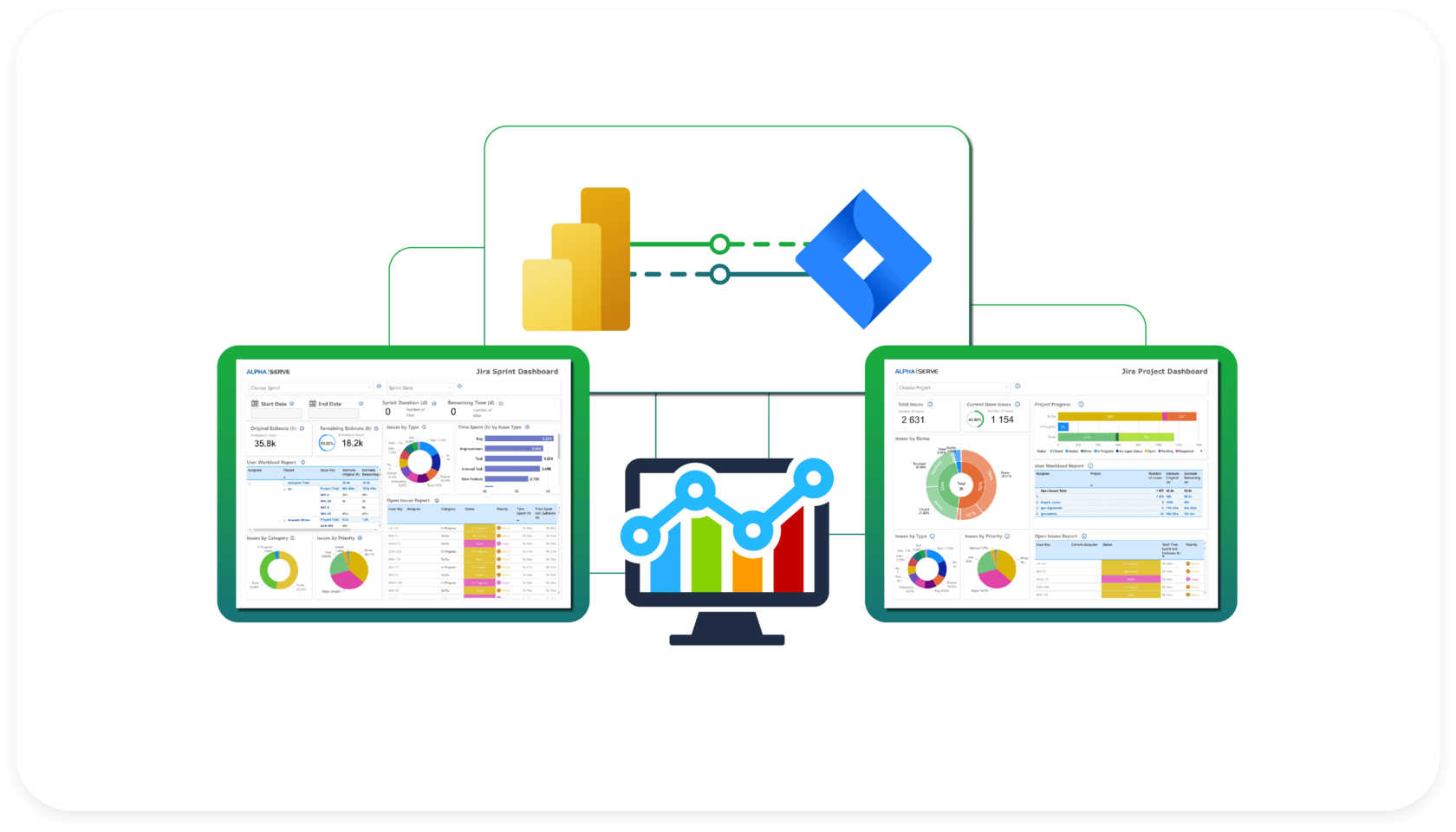
Undoubtedly, native Jira Time Tracking lets managers get started with effective time management for projects. However, the Jira tracking feature must align with modern agile requirements. First, you must manually enter time tracking fields for each issue. This is inefficient and not suitable for any modern agile project. Furthermore, Jira doesn’t allow tracking to identify the time taken by a particular user when working on an issue. Hence, it is impossible to learn about the Jira Worklog Report per user.
Due to limited Jira time tracking features, creating a Jira Time Tracking Report by user in Jira itself is not useful in the long run. That’s why, as a manager, you must rely on third-party business intelligence (BI) solutions such as Power BI.
Power BI Jira integration brings visualization and reporting multiple benefits, especially when dealing with Jira data. These benefits include:
Use Power BI visualization capabilities to gain insight into your employee’s productivity and workflow.
Work with custom fields to find bottlenecks in employee’s work habits and use the information to improve productivity.
Create reports per user and also know the time spent by different users on a specific issue.
Apply Power BI filters to generate in-depth insights, which are generally unavailable via the native Jira Time Tracking Report.
Automate data refreshes to get the latest data to continue improving business processes.
Ability to work with multiple data sources and create a more insightful report.
Power BI also allows managers to share reports among non-Jira users without giving access to Jira instances.

Using Power BI can change how you track time for your Jira projects. To learn how to generate a Jira Time Tracking report in Power BI effectively, follow the steps below.
To ensure seamless connectivity between Jira and Power BI, you’ll need to use Power BI Connector for Jira. It is a no-code app you can install from the Atlassian Marketplace without writing a single line of code. Furthermore, it also offers free dashboard templates that let you kick-start your reporting work.
Ensure you possess the appropriate administrative privileges for Jira Cloud before commencing the task. If you don’t have one, ask your Jira Administrator to provide the ability to install the app.
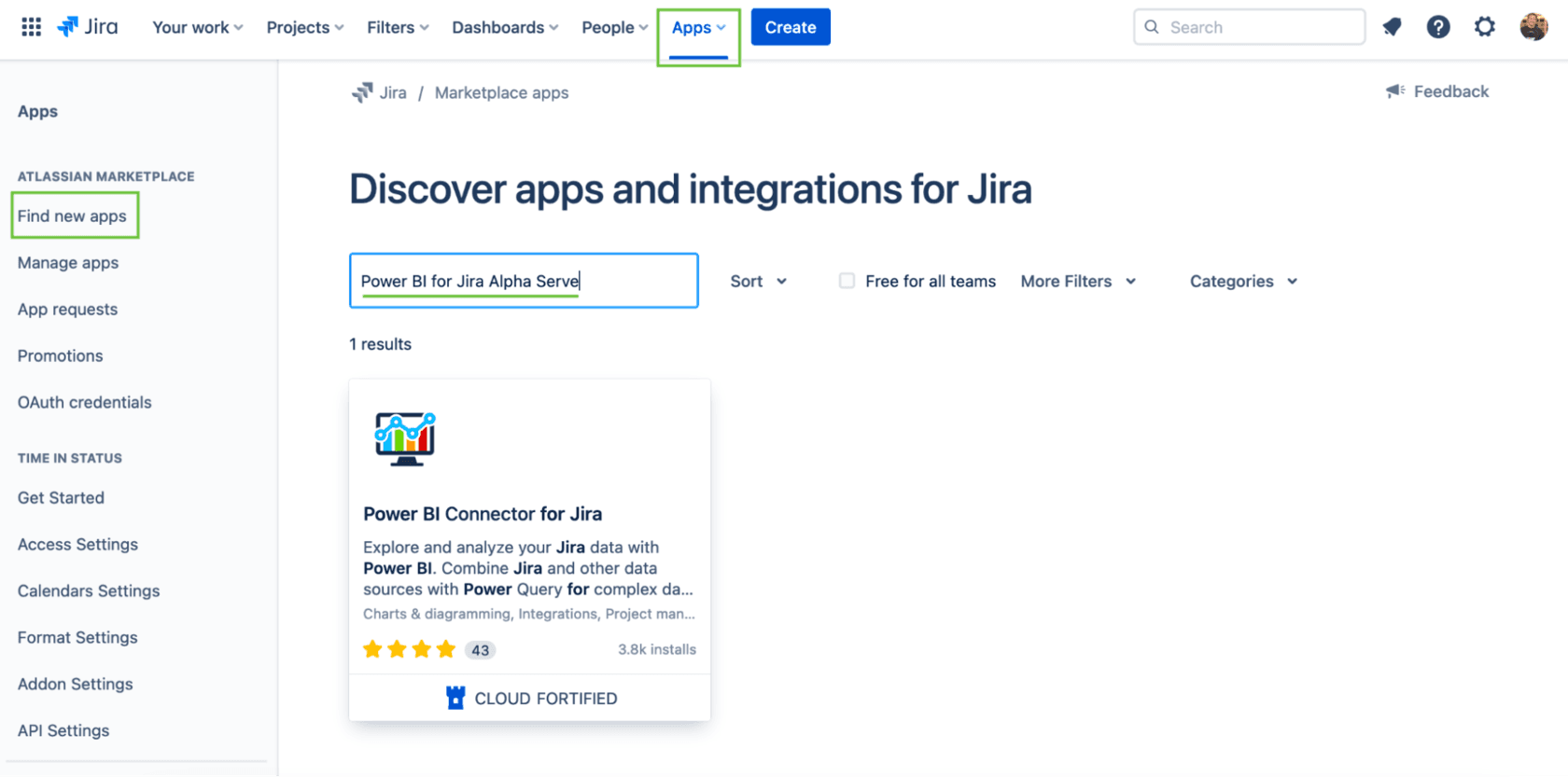
Next, go to Jira Cloud Apps and the Find new apps section. From there, type “Power BI Connector for Jira Alpha Serve”. Once you’ve found it, click on the app.
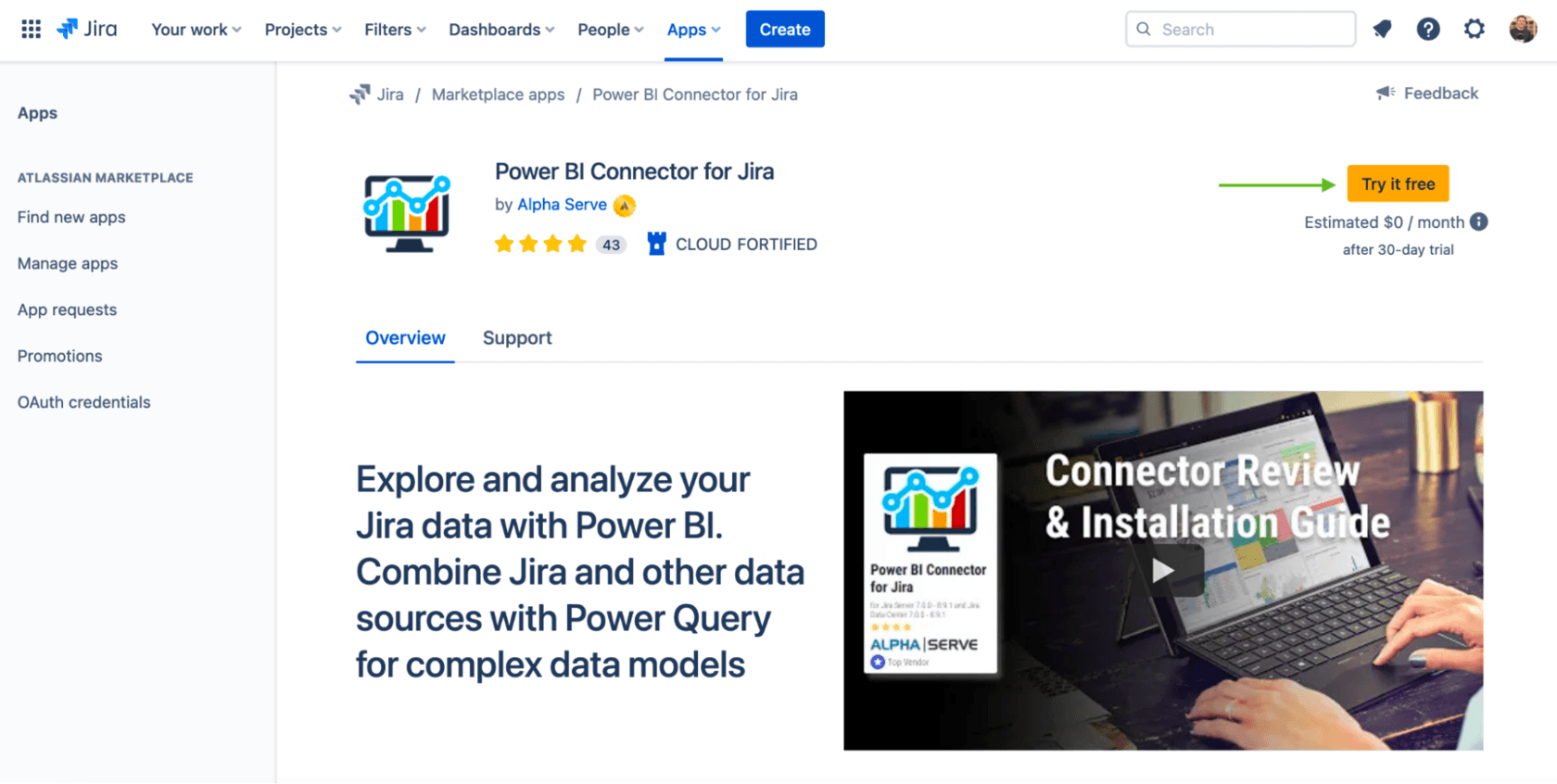
From here, click on “Try it free”. It’ll unlock a 30-day free trial license.
Click on “Start free trial” to start the installation process.
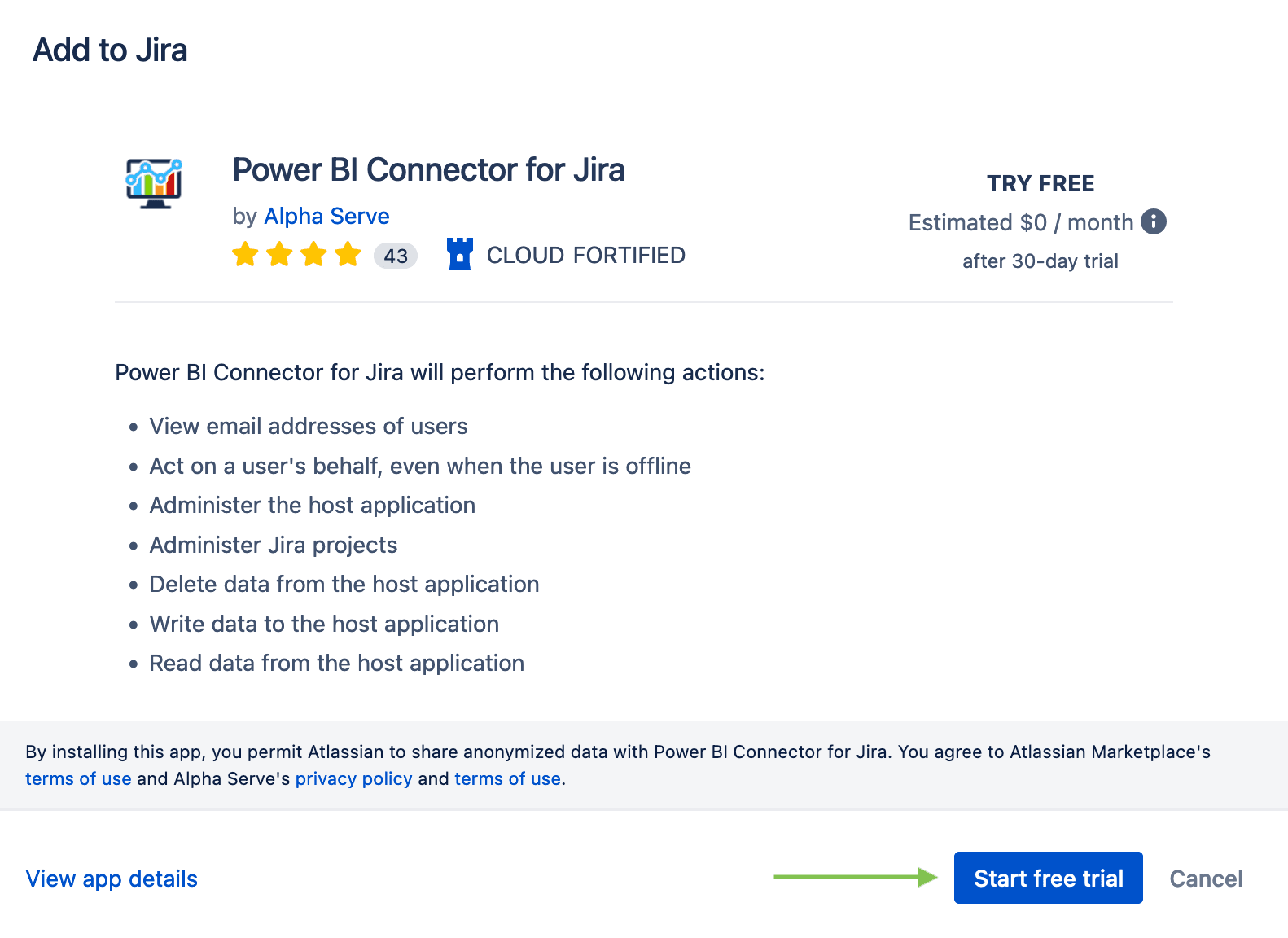
To know the installation process in detail, check out the installation documentation.
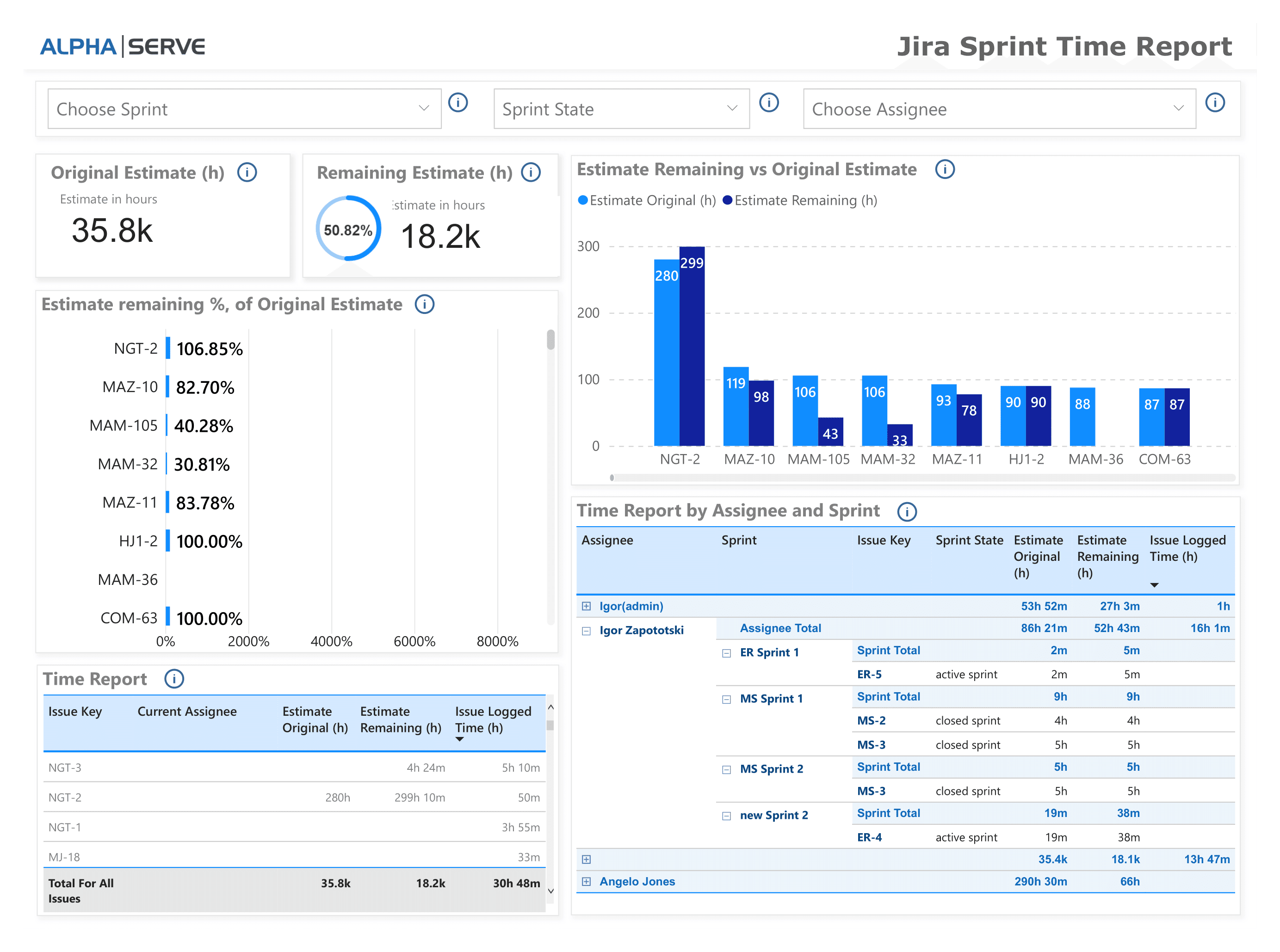
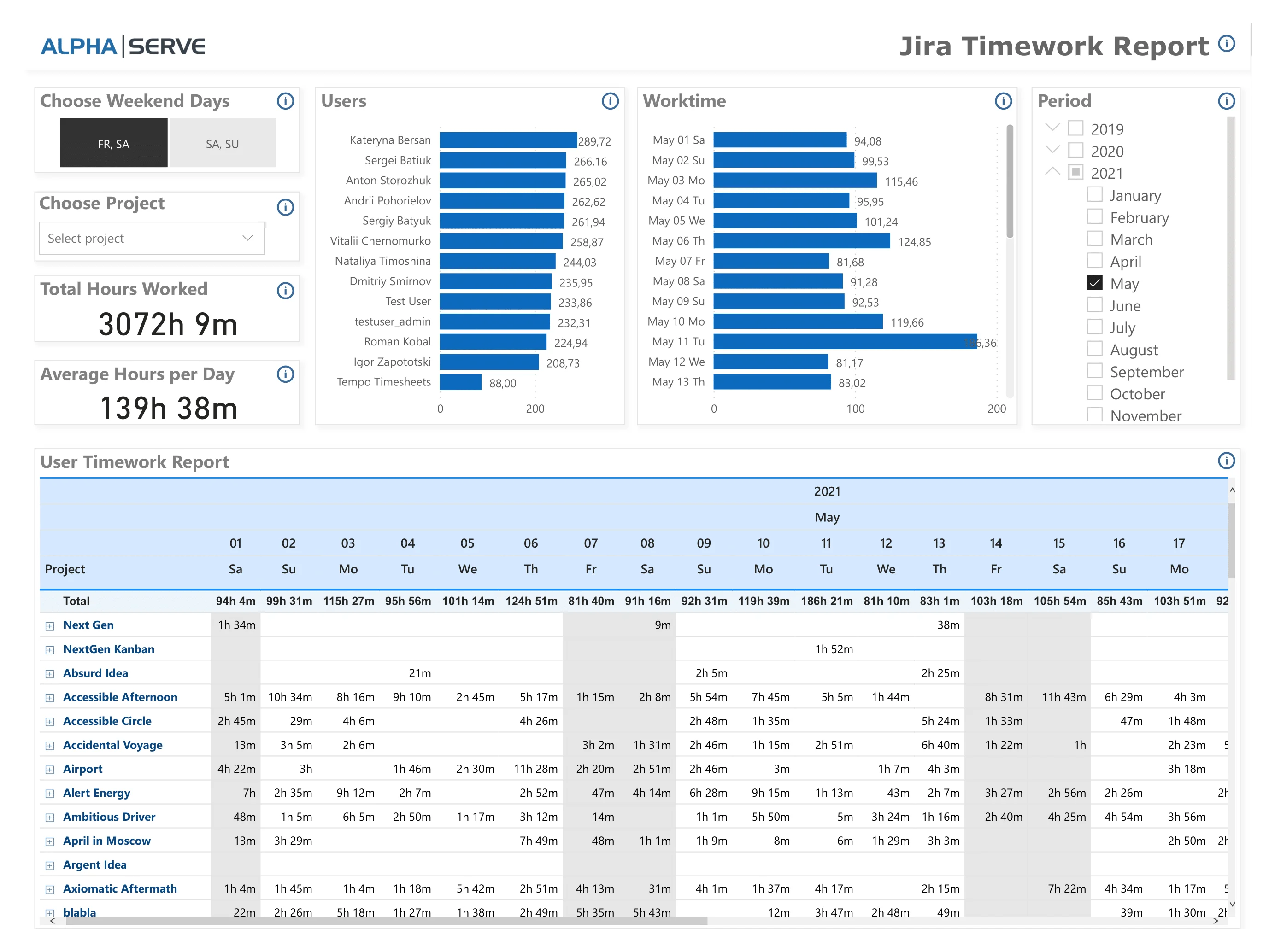
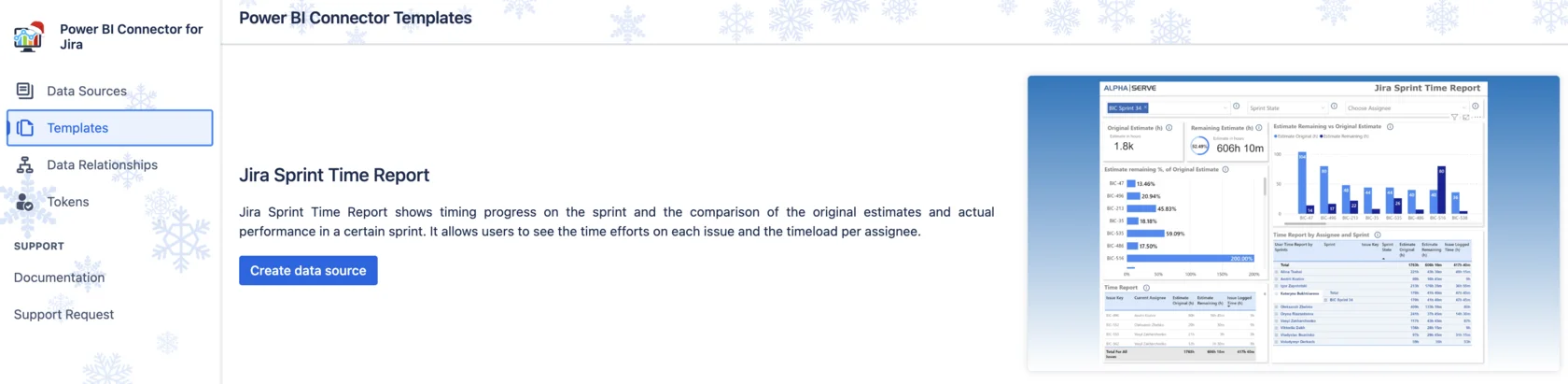
The Power BI Jira Connector offers access to plenty of dashboard templates. As you’re working with Jira time data, the best templates are Jira Sprint Time Report and Jira Time Work Report, which provide users with powerful tools for tracking and analyzing time-related metrics.
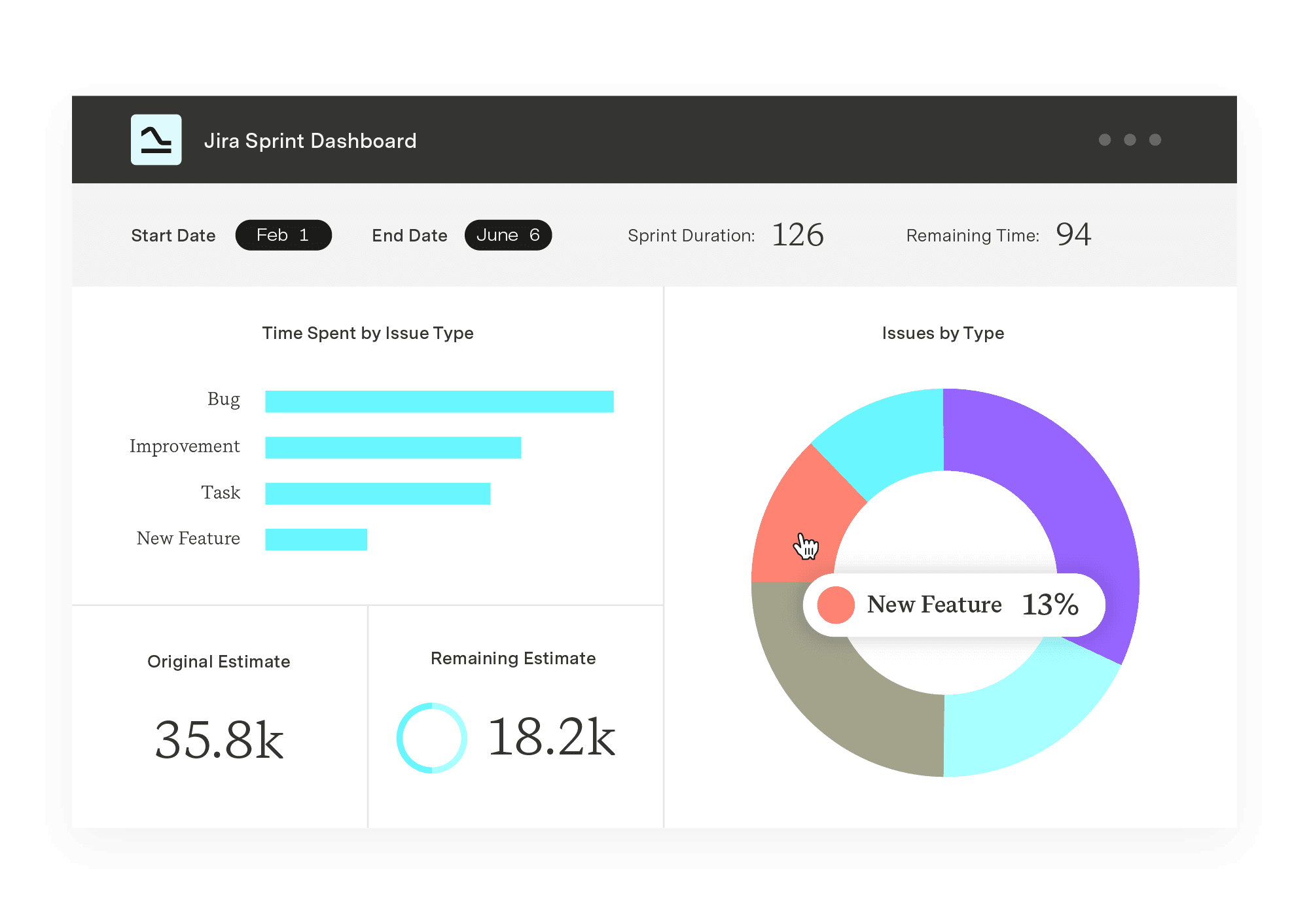
Thus, the Jira Sprint Time Report dashboard template offers a compact view of Jira Sprint time performance, emphasizing key metrics such as progress tracking, original estimates versus actual performance in a particular sprint, and detailed insights into issue-specific time efforts. Users can efficiently manage workloads by examining the distribution of tasks among assignees, ensuring optimal resource allocation.
While the Jira Time Work Report is developed for individual assignee performance, this flexible Jira work log report enables project-specific analysis over selected time frames. With a focus on adaptability, users can customize weekend configurations to accommodate international variations. This Power BI template is a configurable alternative for timesheets, facilitating resource assignment and task prioritization decisions.
Open the Power BI Connector for Jira app to access the required Power BI dashboard template. Go to the "Templates" tab.
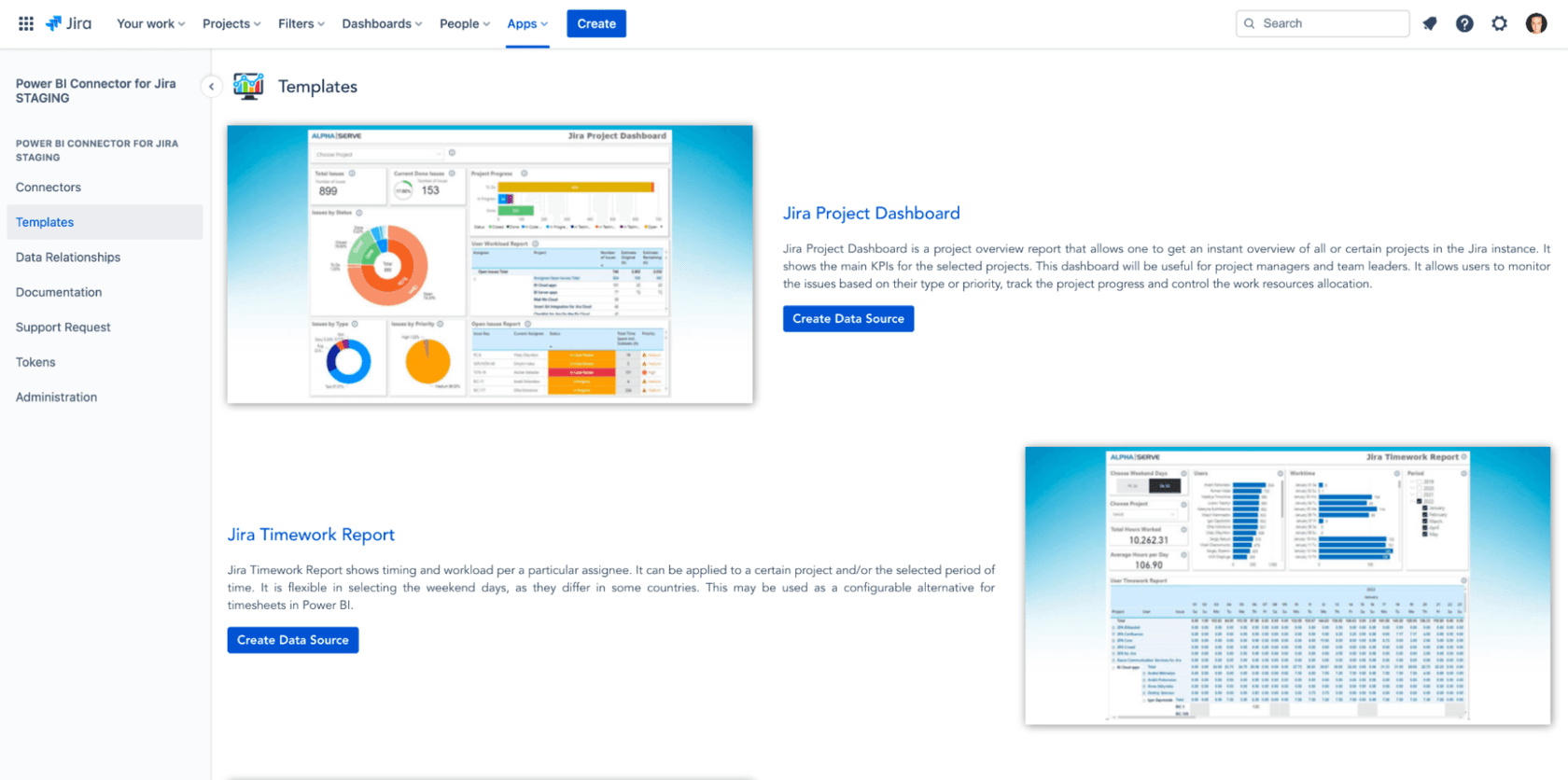
Exemplifying the procedure through the "Jira Sprint Time Report," we showcase the seamless generation of a time-tracking report in just a minute. To start the process, choose the "Jira Sprint Time Report" template and proceed by clicking the "Create Data Source" button.
A new window will open. Here, you’ll need to enter the data source name and description and set the project filter. Once done, it’ll auto-generate the data source.
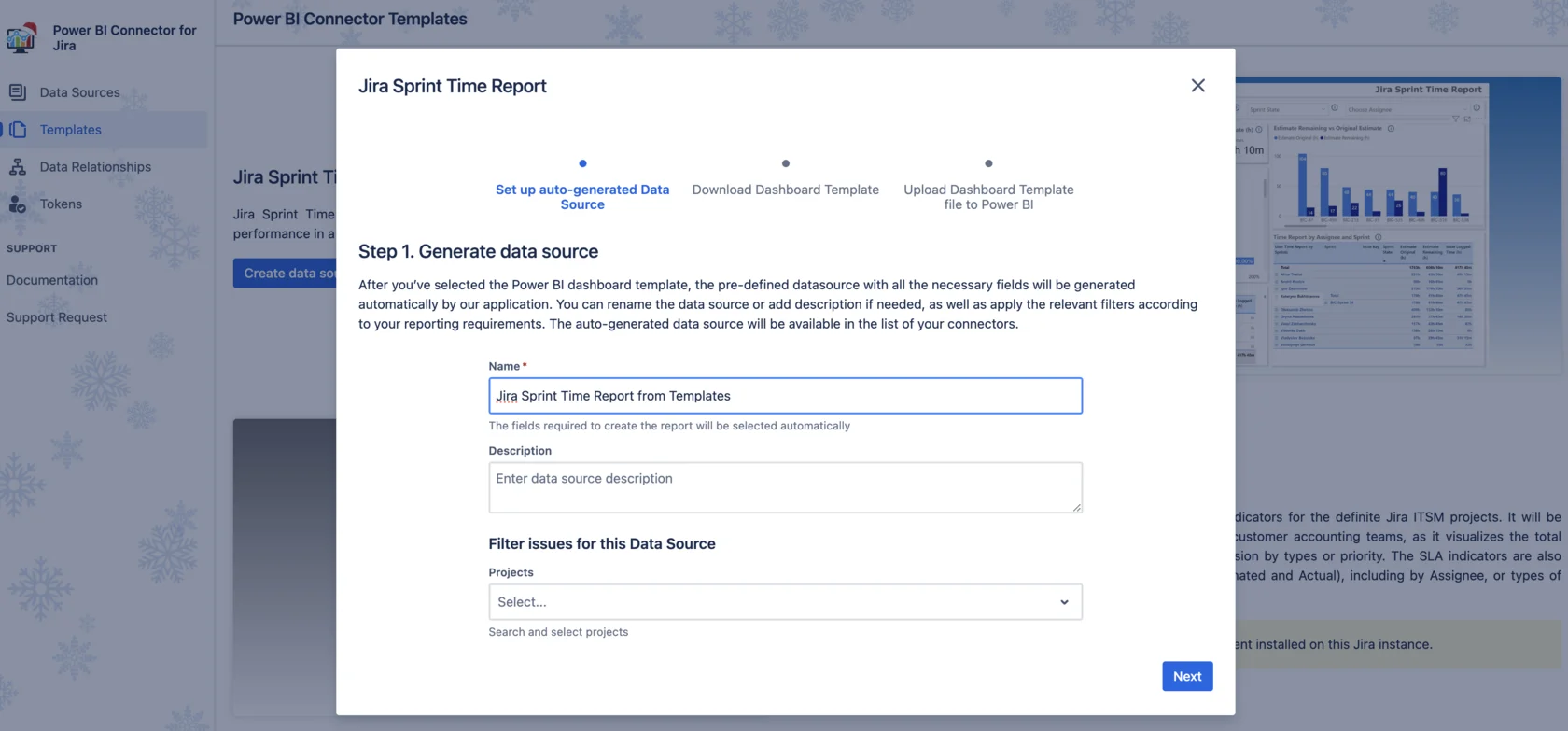
You’ll then get a data source link. Copy the link, and then click Next to start downloading the .pbit file.

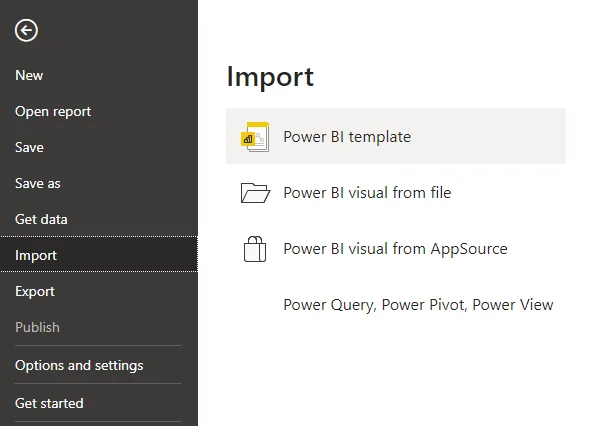
Now open Power BI Desktop and go to File > Import > Power BI Template. Here, you’ll need to upload the downloaded .pbit file.
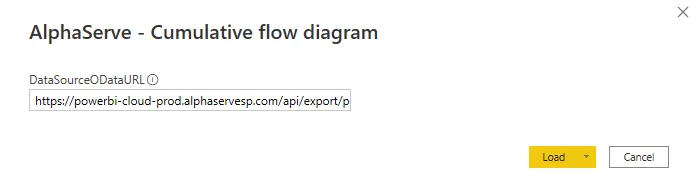
In the very next step, enter the copied Data Source URL and click on Load.
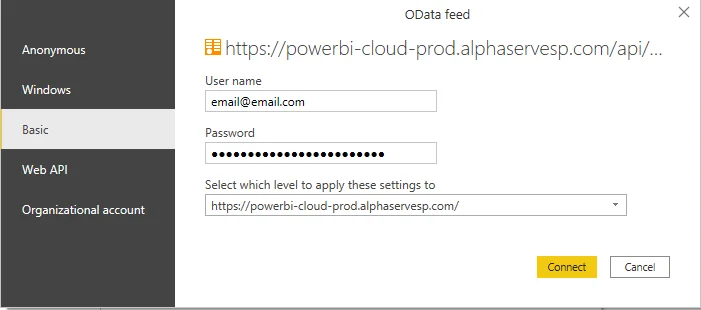
Complete the whole process by providing your basic authentication details and click Connect.
That’s it! You have started using the Jira Sprint Time Dashboard template for Jira Time Reporting that gives teams an eagle-eye view with access to the latest data on a specific sprint.
Establishing an effective workflow for generating Jira Time Tracking reports is imperative for businesses. The default Jira Time Tracking features often fall short in delivering a comprehensive overview. Organizations are encouraged to leverage the pre-built dashboard templates available in Power BI Connector for Jira to address this. It saves valuable time and establishes a streamlined and ongoing analysis process for Jira Time Tracking Reports.
Power BI Connector for Jira
Experience a new standard in data integration and reporting. Enjoy quick setup, effortless data export from all Jira products and third-party apps, and instant access to pre-built templates.
Start a Free TrialOur Custom Charts/Assets for Jira integration lets you report on asset data on JSM dashboards, boosting the effectiveness of your ITSM team.

Spotify’s agile model propelled the company to become the world’s most popular music streaming service. But should other companies follow its example?

Don’t let pie charts’ dodgy reputation scare you. Learn how to use this powerful visualization tool to illustrate data in simple, meaningful ways.

Learn what an affinity diagram is, how to create one, and how it helps teams organize ideas and turn insights into action.

Get your discount for Tempo Collections – a curated bundles of award-winning apps designed to help you scale step by step on your SPM journey.
At some point in your career as a project manager, you’ll find yourself leading a troubled team. Here are 11 tips to help you cultivate a happier team

Easily synchronize important work items and field data from Azure DevOps into a beautiful and strategic roadmap.

Learn to write an effective implementation plan that lets you manage your team’s activities, allocate resources, and execute the project with ease.
Learn how idea development turns concepts into validated solutions with a structured process that leads to stronger business outcomes.