
A good bar graph does in five seconds what a status meeting does in 30 minutes. It shows where the work is, who has it, and which categories are growing or shrinking. For Jira teams, the bar chart is the workhorse of dashboard reporting – the one visualization that handles sprint progress, ticket distribution, time spent, and a dozen other questions without forcing anyone to learn JQL.
What is a Jira bar graph?
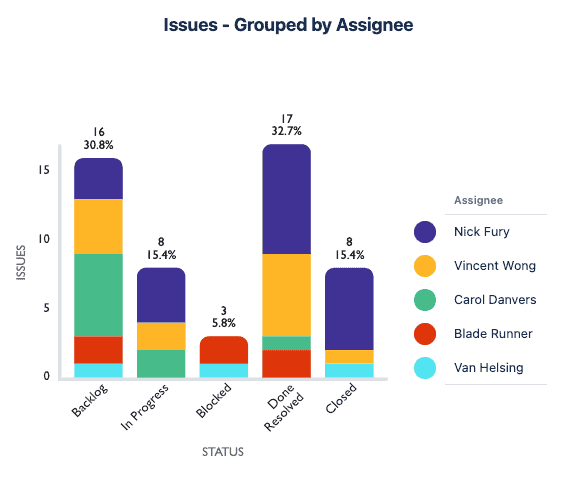
A Jira bar graph is a chart gadget that renders Jira data as horizontal or vertical bars on a dashboard or Confluence page. Each bar represents a value – a count of issues, a sum of hours, a total of story points – grouped by a chosen field such as assignee, status, priority, sprint, or component.
Bars can be simple, grouped, or stacked. A simple bar chart compares values across one dimension. A grouped bar chart adds a second dimension – issues per assignee, broken down by status, for example. A stacked bar chart places the second dimension on top of the first, so the total bar height shows the overall total while each segment shows the contribution of a sub-category.
Bar graphs work best when the audience needs to compare quantities at a glance. Status totals across a release. Hours logged per account. Bug counts per component. Anywhere the question is "how do these categories stack up against each other?", a bar chart answers it faster than a table.
Benefits of a Jira bar graph
Comparison at a glance. Bars make relative size obvious – the longest bar is the biggest number, no decoding required.
Two dimensions in one view. Grouped and stacked bars surface category-within-category relationships without a second chart.
Dashboard-ready for any stakeholder. A bar chart is universally readable, which matters when execs, PMs, and developers all share the same dashboard.
Fast iteration. Change the grouping field, the data source, or the color mapping in seconds without rebuilding the chart.
How to use a Jira bar graph
Pick the question first. "Which assignees have the most open bugs?" needs a simple bar chart grouped by assignee. "How is bug count distributed across components, broken out by priority?" calls for a stacked bar chart. "How does sprint velocity compare across the last six sprints?" maps to a grouped bar chart over time.
Choose the data source. Most bar chart gadgets pull from a JQL query, a saved filter, a board, or a project. JQL gives the tightest control – any combination of fields, operators, and functions Jira supports. Filters and boards are easier for teams that already curate views.
Set the grouping field. This is the field whose values become the bars. Status, assignee, priority, component, sprint, fix version, and any custom field with discrete values all work. For numeric fields, the chart sums or averages within each bar.
Customize the visual. Reorder bars, merge or rename values, set explicit colors per category for brand consistency, and add labels or descriptions so the chart explains itself when a stakeholder lands on the dashboard cold.
Managing Jira bar graphs with Tempo Custom Charts for Jira
Custom Charts for Jira is the dashboard reporting app teams use when Jira's native gadgets run out of room. It supports more than ten chart types, including bar, 2D grouped bar, and 2D stacked bar – the three configurations most teams need for portfolio and sprint reporting.
Custom Charts pulls data from JQL, saved filters, boards, or projects, and groups by any standard or custom Jira field, including third-party fields from Scriptrunner, Xray, and other apps. For Tempo customers, it pulls Timesheets data – worklogs by author, account, issue type, or estimated versus actual – and Structure PPM hierarchies, so teams can chart hierarchical or time-tracking data the same way they chart ticket counts.
The customization layer is where Custom Charts earns its keep. Color pickers map specific values to specific colors, so red always means blocked and green always means done across every dashboard in the org. Merge and rename collapses messy field values into the categories that actually matter.
Custom ordering puts the most important bars first instead of leaving them in alphabetical order. The same gadget renders on Jira dashboards or Confluence pages, so the executive who only opens Confluence sees the same chart the team sees in Jira.
Sign up for a demo
Request Demo